The console is where you talk to VIOS: a Forth read-evaluate-print loop (REPL) running on the eZ80. You use it from the Agon's own keyboard and VGA screen, and the same session is visible from the Mac over USB, where the host tools can type into it too. This chapter explains what you see, which keys do what, and how output from host commands and background tasks shows up.
Where the console lives
The REPL runs on the eZ80 and writes its output to the ESP32, which does two things with every byte: it forwards it to USB (for the host harness and CLI) and it interprets it into an 80-column console screen of its own. The eZ80 never draws console text itself, so printing is never slowed down by the display.
How that console screen is shown depends on the display:
- In the GUI (the default build), the console is a window titled Console on the desktop, alongside any application windows. It always scrolls to keep the newest output in view. See The GUI.
- In the full-screen text console, the whole screen shows 58 rows of 80
columns, with a status bar in the last row:
VIOS console F1: editor Up/Down: history. Ctrl+Alt+F1 switches between the GUI and the full-screen console at any time; the GUI keeps its state while hidden and repaints on return.
Both views show the same text: whatever the console received while it was hidden appears when you come back to it, including output produced while the workbench editor had the screen.
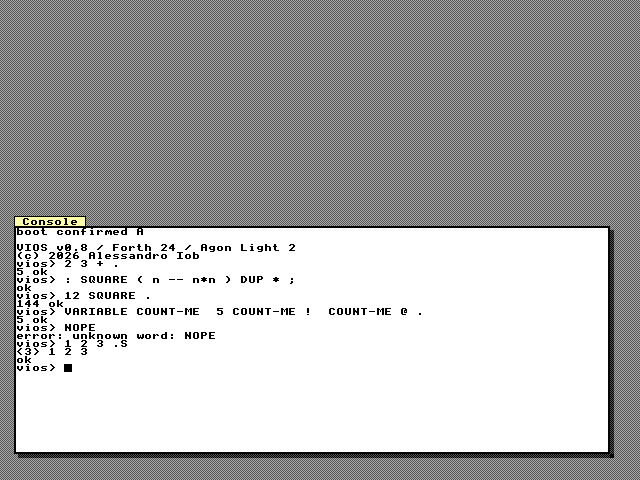
Prompt, ok and errors
After startup messages (for example user startup: /VIOS/USER.FTH or
autorun task 1), the REPL prints its banner and prompt:
VIOS v0.8 / Forth 24 / Agon Light 2
(c) 2026 Alessandro Iob
vios>
The version in the banner comes from the VERSION file (see
Versions and releases).
Type a line and press Enter. The whole line is evaluated, then the REPL
prints ok if it succeeded or error: and a message if it failed, and a
new prompt:
vios> 2 3 + .
5 ok
vios> 2 FOO
error: unknown word: FOO
vios> : DOUBLE ( n -- 2n )
compile> 2 * ;
ok
vios> 21 DOUBLE .
42 ok
Output from the line appears right after the line itself, and ok follows
the output on the same row unless the output ended with a new line. While a
colon definition is still open at the end of a line, the prompt is
compile> instead of vios>: the next line continues the definition. An
error discards the unfinished definition and clears the stacks (see
The Forth Language).
The REPL accepts lines up to 255 characters; a longer line is rejected
whole with error: input line too long. The keyboard line editor below
stops at 235 characters.
Typing at the keyboard: the line editor
While the REPL waits for a line, keys are edited on the ESP32, not on the eZ80. Typing and its echo therefore stay instant even while background tasks keep the CPU busy. Only when you press Enter is the finished line sent to the eZ80.
| Key | Effect while editing a line |
|---|---|
| Printable keys | insert at the cursor (up to 235 characters; more are ignored) |
| Left / Right | move the cursor one character |
| Home / End | move to the start / end of the line |
| Backspace | delete the character before the cursor |
| Delete | delete the character under the cursor |
| Esc or Ctrl+C | clear the line |
| Up | recall the previous line from the history |
| Down | step forward in the history; past the newest entry, an empty line |
| Enter | submit the line |
The keypad's arrow, Home, End and Enter keys work the same way.
History holds the last 4 submitted lines. Empty lines are not stored, and a line identical to the most recent entry is not stored again. Recalling a line replaces what you were typing; editing a recalled line and pressing Enter submits the edited copy.
When something else prints to the console while you are in the middle of a line (a background task, a host command), the editor redisplays your partial line on a fresh row at your next keystroke, so your typing is never mixed into other output.
When you press Enter, the editor erases its own echo and hands the line to the REPL, which echoes it again as it reads it. That way exactly one copy of each command appears on the console and in the USB stream.
Keys while a command runs
While a command is executing, the line editor is off and keys go straight to the eZ80:
- Ctrl+C interrupts the running command. It fails with
error: interruptedat its next safe point, normally within 50 ms, and you get the prompt back. This needs the board's 1 kHz tick, which runs whenever VIOS was started by MOS (the normal boot); after a development load over ZDI there is no tick and Ctrl+C cannot interrupt. - Other printable keys are queued as input. A running word that calls
KEYreceives them one byte each; arrow and function keys produce no bytes. Keys nobody reads become the start of the next command line (the REPL echoes them when it gets back to the prompt, and only Backspace edits them).
: WAIT-FOR-Y ( -- ) ." press y: " BEGIN KEY DUP EMIT [CHAR] y = UNTIL CR ;
WAIT-FOR-Y
Other keys
| Key | Effect |
|---|---|
| F1 | switch between the console and the workbench editor (see The GUI Tools) |
| Ctrl+Alt+F1 | switch between the GUI and the full-screen text console |
| F5, F6, F10, Shift+F10, Ctrl+F5, Ctrl+F12, Ctrl+K, Alt+F3 | used by the GUI window manager when the GUI is shown (see The GUI) |
The window manager sees every physical key first. Keys it uses (menus, window switching, a focused application widget) never reach the console; all others go to the line editor or, while a command runs, to the eZ80.
The console commands WB-CONSOLE (show the console and focus it),
WB-CONSOLE-CLEAR (forget the captured console text) and WB-CONSOLE?
(print WB-CONSOLE open N home N renderer esp) do the same from Forth or
from the host.
Host commands on the console
The host harness and CLI on the Mac send commands over USB into the same
REPL (see The Host Harness and MCP Tools).
Each request line carries a short envelope: an @ and 8 hex digits (a
nonce), optionally ! and a CRC-32, and the REPL answers with a matching
@NONCE line after the result. The console view hides all of this framing,
so on screen a host command looks exactly as if it had been typed:
vios> WORDS
 DUP DROP SWAP OVER + - * / MOD AND OR XOR INVERT ...
ok
vios>
This makes it easy to watch a script or an LLM work on the board. A few rules keep the two input sources apart:
- A line from the keyboard and a line from the host are never mixed: a finished keyboard line waits until a host line in progress has ended, and each line runs whole.
- A Ctrl+C typed by the host while a command runs interrupts it, like the
keyboard's. A Ctrl+C byte that reaches the REPL at the prompt (from a
serial terminal, for example) prints
aborted, discards any unfinished definition and clears the stacks. SYNC nameprints@NAMEon its own line; the harness uses it as a marker in the output.
Output from background tasks
Background tasks (see Tasks and Preemption) share the console in two ways:
- A task started with
SPAWN-CON(and the boot applicationAUTORUN) prints to the console, but its text is held in a 128-byte buffer and printed only when the REPL has been idle at the prompt for half a second, on a fresh line. Task text therefore never lands in the middle of a command's output. No new prompt is printed after it; just keep typing. - A task started with
SPAWNkeeps its output in its own 128-byte buffer; read it withTASK-OUT id, or redirect it to a pipe or file withTASK-OUTPUT. When a buffer is full, further bytes are counted as dropped (TASKSshows the count).
: HEARTBEAT ( -- ) BEGIN ." tick" CR 2000 MS AGAIN ;
' HEARTBEAT SPAWN-CON .
vios> ' HEARTBEAT SPAWN-CON .
1 ok
vios>
tick
tickStop it with 1 TASK-KILL.
Console output from your programs
EMIT, TYPE, ., U.,
CR, SPACE, SPACES and ." write to
the console. The console understands printable ASCII, carriage return,
line feed and backspace; other control bytes are ignored by the console
view (they still reach USB). Lines longer than 80 characters wrap. For
colours, graphics and raw VDP commands use the display words in
Display and Graphics or a GUI window.
: RULER ( n -- ) 0 ?DO I 10 MOD [CHAR] 0 + EMIT LOOP CR ;
: BOX ( -- ) ." +----+" CR ." |VIOS|" CR ." +----+" CR ;
25 RULER BOX