VIOS boots into a windowed desktop. The windows, menus, widgets and animations are not drawn by the eZ80: they live in a display server on the ESP32 that also generates the VGA picture. Your Forth program states what exists ("a window here, a button in it, this text in that list") and later asks what the user did. Everything that must react within a frame, such as moving the focus, opening a menu, scrolling a list or editing a line of text, happens on the ESP without the CPU.
This chapter explains the model and every UI- word. The next chapter,
The GUI Tools, describes the Browser, Workspace, Inspector
and Manager built on top of it, and has the complete keyboard reference.
How it works
The CPU and the ESP talk over the VDP serial link:
- Ops go one way, in batches. Each
UI-word encodes one small op (a few bytes) and sends it inside aVDU 23,0,&E4,len,...packet. The ESP checks the length of the whole packet before applying any of it, so a damaged packet is dropped without side effects. - Composition is the ESP's job. At every vertical blank the ESP composes the damaged parts of the screen, top to bottom, from the desktop pattern, the windows (back to front, with shadows) and the sprites, and never shows a half-drawn window. About 3 ms of each 16.7 ms frame go to composing; damage that does not fit carries over to the next frame.
- Events are pulled. Keys go to the ESP's window manager first. What it uses
(a menu key, Tab between widgets, typing into an input field) never reaches the
CPU; what it produces are semantic events: "button 5 pressed", "row 3
selected", "command 100 chosen", "close requested". They wait in a 16-entry
queue on the ESP until the CPU asks for them with
UI-NEXTorUI-EVENT. When the GUI tools are running they switch on the nudge: the ESP sends a one-byte packet when an event arrives, so the CPU only polls when there is something to fetch. - Unused keys still reach Forth. A key that no window-manager binding and no
widget wants goes to the CPU's keyboard input as before, unless the focused
window drops it (see
UI-KEYS).
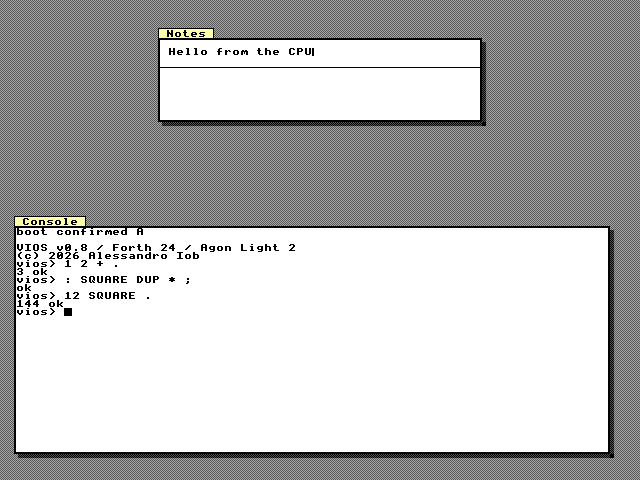
At power-on the ESP starts the display server before the eZ80 has loaded, so the desktop and the Console window (the REPL) appear at once. Ctrl+Alt+F1 switches between the desktop and a full-screen text console at any time; the server keeps all windows while hidden and repaints them when you come back.
Most UI- words only send bytes, so they also run on the host build and in
background tasks (they check their arguments and report errors the same way).
Five words wait for a reply from the ESP and therefore work only in the
foreground on the board: UI-SYNC, UI-EVENT, UI-NEXT,
UI-WGET and UI-TEXT@.
Ids and limits
All objects are numbered. Some numbers belong to the system:
| Object | Range for the CPU | Taken by the system | Use in your programs |
|---|---|---|---|
| Windows | 0..26 | 20..24 GUI tools, 26 workbench | 0..19 |
| Surfaces | 0..10 | 5..9 GUI tools, 10 workbench | 0..4 |
| Widgets | 0..63, shared by all windows | 40..63 GUI tools | 0..39 |
| Menus | 0..15 | 0 world menu or menu bar, 12, 14, 15 tool pane menus | 1..11, 13 |
| Commands | ids 0..65023, 64 defined at a time | $7F00..$7FFF GUI tools (11 commands) | other ids |
| Sprites | 0..15 | 15 is the pointer | 0..14 |
Other limits: window titles 31 characters, command labels 23, menu titles 15, 16 items per menu and 3 levels of submenus, widget text 47, list rows 31 characters and 1024 rows shared by all lists, 4 TextViews of 4096 bytes each (shared with the tools), 16 running tweens, 4096 bytes of sprite pixels, 8 events buffered on the CPU and 16 on the ESP.
Surfaces and cells
Text lives in surfaces: grids of character cells, up to 80 x 60. A cell is a
character and an attribute byte, fg + 16 * bg, where both are palette
indices. Indices 0..3 are black, red, yellow and white in every style; 4..15
belong to the style, so a surface meant to look the same everywhere uses 0..3.
The attribute 48 (3 16 * 0 +) is black on white.
A window shows a surface (or part of one). Several windows may show the same surface, and you can draw into a surface whether or not a window shows it.
0 40 10 48 UI-SURFACE                    \ surface 0: 40 x 10 cells, black on white
1 0 160 120 40 10 UI-VISIBLE UI-DECOR OR UI-SHADOW OR UI-WINDOW
S" Notes" 1 UI-TITLE
S" Hello from the CPU" 0 1 1 48 UI-TYPE  \ surface 0, column 1, row 1
0 0 3 40 1 2 48 UI-FILL                  \ row 3: glyph 2 is a one-pixel horizontal line
0 19 1 3 TRUE UI-CARET                   \ a blinking bar caret after the text
1 UI-FOCUS  UI-COMMIT
UI-SURFACE ( id cols rows attr -- ) creates or clears a
surface. UI-TYPE ( addr len id col row attr -- ) writes text,
UI-FILL ( id col row w h char attr -- ) fills a rectangle,
UI-SCROLL ( id dy attr -- ) scrolls the whole surface (a
positive dy moves the text up) and UI-CARET
( id col row shape blink -- ) places a caret (shape 0 off, 1 block, 2
underline, 3 bar) that the ESP blinks by itself. Characters 1 and 2 are the
server's one-pixel vertical and horizontal line glyphs.
Windows
UI-WINDOW ( id surface x y cols rows flags -- ) opens a
window. x y is the pixel position of the top-left corner of the client
area (the frame and the title are drawn around it); cols rows is its size in
cells. The flags add up:
| Flag | Value | Meaning |
|---|---|---|
UI-VISIBLE |
1 | shown |
UI-DECOR |
2 | frame and title in the current style; only visible, decorated windows can take the focus |
UI-SHADOW |
4 | drop shadow |
UI-ACTIVE |
8 | drawn as the active window (the server manages it as the focus moves) |
UI-FREE-X |
16 | never snap this window's x |
UI-MODAL |
32 | a dialog: dims everything below it, keeps the focus, Esc becomes a close request |
The usual value for an application window is 7 (visible, decorated, shadow).
Snapping. At 4 bits per pixel a cell is exactly four bytes wide, so text
draws fastest when the client area starts on a multiple of 8 pixels. By default
the server therefore rounds every window's x to 8; y is free. 1 UI-SNAP
allows any x for all windows, 8 UI-SNAP restores the default, and the
UI-FREE-X flag exempts a single window.
Once a window exists:
1 200 80 40 10 UI-PLACE                  \ move (pixels) and resize (cells) in one step
1 UI-RAISE                               \ to the front, without the keyboard
1 0 1 UI-VIEW                            \ show the surface from row 1
1 0 0 UI-VIEW
1 UI-FOCUS                               \ to the front, with the keyboard
UI-COMMITUI-TITLE( addr len id -- )sets the title. Smalltalk draws it in a tab above the top-left corner, Turbo Vision centres it in the top frame.UI-FOCUS( id -- )raises the window, marks it active and sends a FOCUS event;UI-RAISEonly raises it.UI-FLAGS( id flags -- )replaces the flags (clearingUI-VISIBLEhides a window without closing it),UI-CLIENT( id surface -- )shows another surface, andUI-VIEW( id col row -- )scrolls a window over a surface larger than itself.UI-CLOSE( id -- )closes the window. Its widgets are forgotten, its surface stays.
The user moves windows with the keyboard too, all handled on the ESP: F6 and Shift+F6 cycle the focus, F5 zooms the focused window to nearly the whole screen and back, Ctrl+F5 enters move/resize mode (arrows move by 8 pixels, Shift+arrows resize by a cell, Enter keeps, Esc reverts), and Ctrl+W or Alt+F3 ask to close it. The server never closes a window by itself: a close request arrives as a WIN event, and your program decides (see Events). Moves, zooms and restores are reported the same way.
Styles: Smalltalk and Turbo Vision
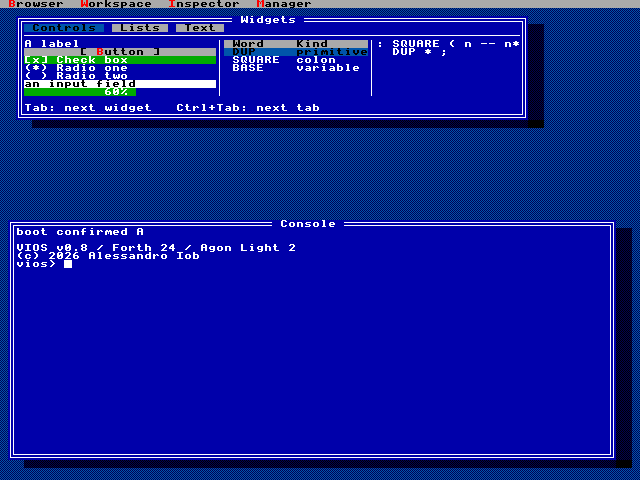
The same windows, widgets and commands can be presented in two styles, switched
at any time with UI-STYLE: 0 UI-STYLE for Smalltalk (the
default) and 1 UI-STYLE for Turbo Vision. Every window is re-decorated and
repainted; nothing else changes.
| Smalltalk (0) | Turbo Vision (1) | |
|---|---|---|
| Desktop | grey dither | blue dither |
| Windows | white body, black 1-pixel border, title in a tab above the top-left corner | blue body, double frame when active, title centred in the top frame |
| Shadow | 4 pixels | two cells right, one cell down |
| Menu 0 | the world menu, a pop-up opened with F10 | the menu bar along the top row, opened with F10 or Alt+letter |
| Status line | none | bottom row, lists commands flagged UI-STATUS with their keys |
| Selection | inverted in the focused widget, grey bar elsewhere | green bar |
1 UI-STYLE                               \ Turbo Vision
0 UI-STYLE                               \ back to Smalltalk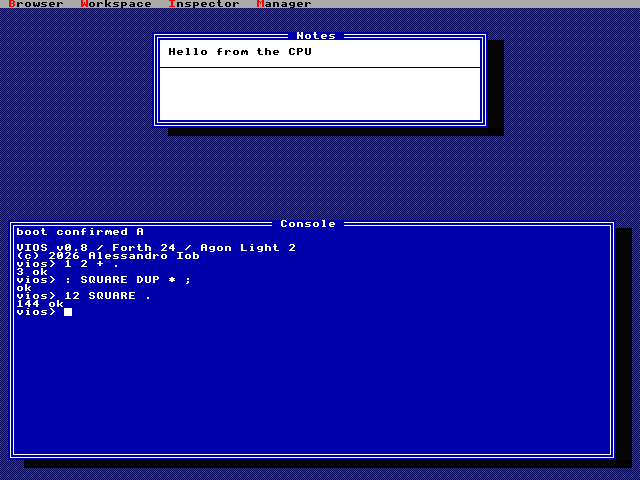
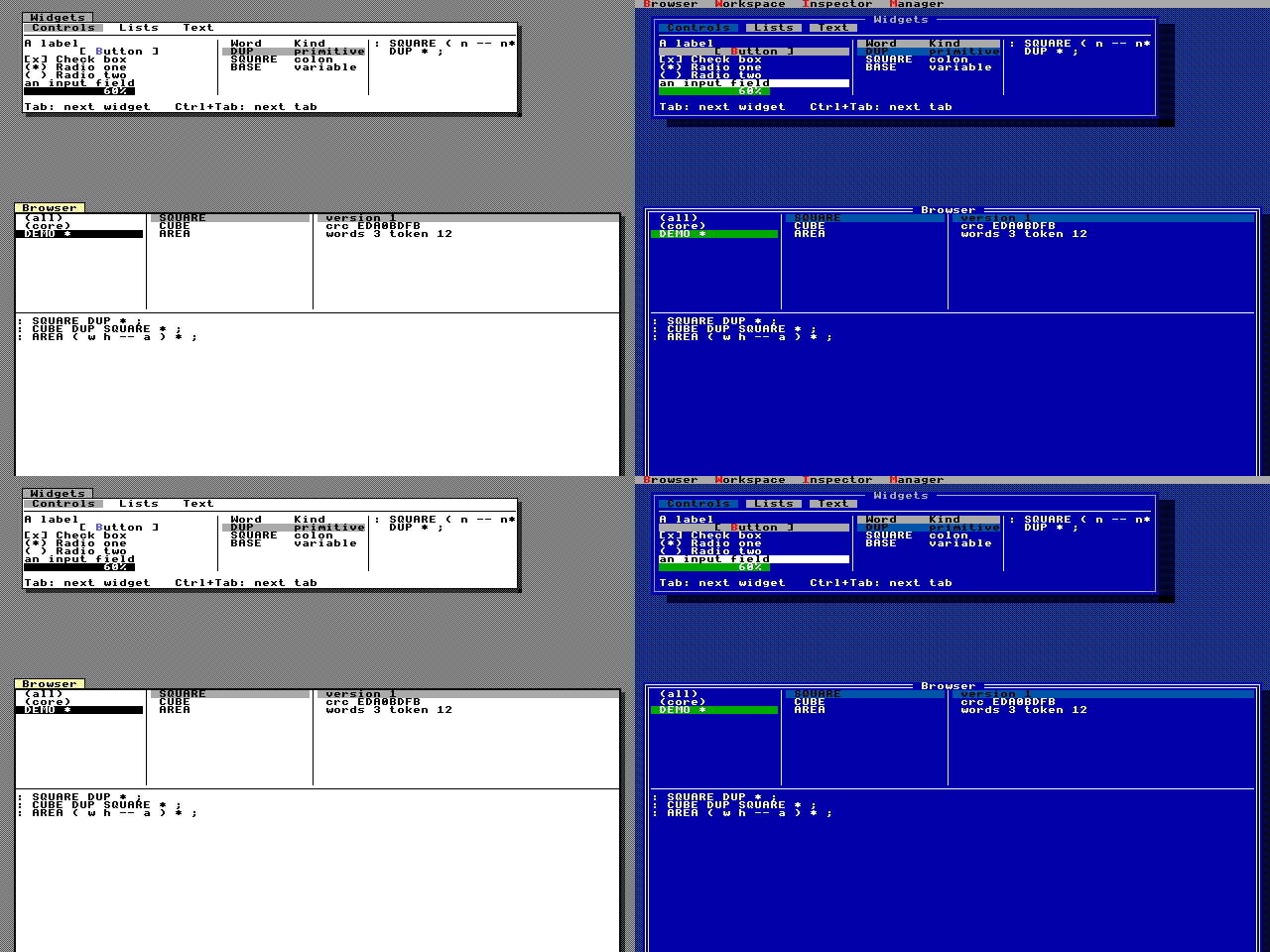
Because the GUI tools put their four commands directly into menu 0 (not into submenus), the Turbo Vision menu bar shows Browser Workspace Inspector Manager as top-level entries: F10 or Alt+B then opens the Browser at once instead of a pulldown.
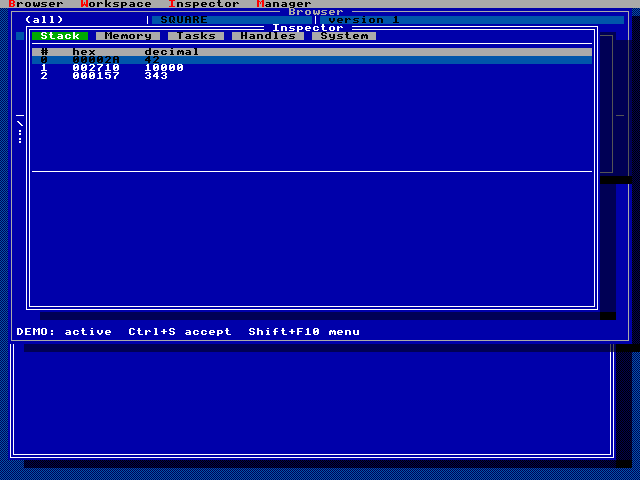
Batching: UI-BEGIN and UI-COMMIT
Without a batch, every UI- word sends its op at once. To avoid showing a
half-built window, the ESP holds composition after any change until it sees a
COMMIT op, or for at most 33 ms. Wrap anything bigger than one op in
UI-BEGIN and UI-COMMIT:
UI-BEGIN
  S" Notes (edited)" 1 UI-TITLE
  S" Second line" 0 1 2 48 UI-TYPE
UI-COMMIT
UI-BEGIN collects the ops in a 250-byte buffer on the CPU (a full buffer is
sent and collecting continues), and UI-COMMIT sends the rest with a COMMIT, so
the whole change appears in one frame. Batching also saves time: the link
carries one packet instead of many. A lone UI-COMMIT after a few unbatched
words is fine too; it just ends the hold early.
UI-SYNC ( -- epoch generation errors ) asks the server for
its state: how many resets it has seen, how many batches it has applied and how
many ops it has refused since the last reset. A growing error count means some
op referred to something that does not exist.
UI-SYNC . . . \ errors generation epochCommands and menus
A command is an action with a number, a label and optionally a key. You
define it once with UI-COMMAND
( addr len id flags vk mods ascii -- ); the ESP then offers it in menus, in
the command palette and through its accelerator, in both styles, and sends a
COMMAND event when it is chosen.
- The label may mark a mnemonic letter with
&(S" &Quit");&&is a literal ampersand. flagsaddsUI-ENABLED(2, needed to be chosen at all),UI-CHECKED(4, a*in menus) andUI-STATUS(8, shown on the Turbo Vision status line).- The accelerator is
vk(a virtual key, for example 159..170 for F1..F12; 0 for none) or else the characterascii, plusmods:UI-CTRL1,UI-SHIFT2,UI-ALT4. For Ctrl+letter pass the letter (113 for Ctrl+Q). Menus show the key text, such asCtrl+Q.
UI-MENU ( item1 .. itemN n addr len menu -- ) defines menu
0..15. Note the order: the items, then their count, then the title. An item is a
command id, UI-SEPARATOR, or m UI-SUBMENU to open menu
m as a submenu. UI-POPUP ( id menu -- ) binds a menu to a
window as its pop-up menu, opened with Shift+F10 while the window has the
focus (255 restores the default, the world menu). UI-STATE
( id flags -- ) changes a command's flags later, for example to grey it out or
tick it.
S" &New note"   200 UI-ENABLED 0 UI-CTRL 110 UI-COMMAND     \ Ctrl+N
S" &Word wrap"  201 UI-ENABLED UI-CHECKED OR 0 0 0 UI-COMMAND
S" &Large font" 202 0 0 0 0 UI-COMMAND                       \ defined but disabled
S" &Quit"       203 UI-ENABLED UI-STATUS OR 0 UI-CTRL 113 UI-COMMAND
201 202 2 S" View" 2 UI-MENU                                 \ menu 2: View
200 2 UI-SUBMENU UI-SEPARATOR 203 4 S" Notes" 1 UI-MENU      \ menu 1: Notes
1 1 UI-POPUP                                                 \ Shift+F10 in window 1
201 UI-ENABLED UI-STATE                                      \ untick Word wrap
UI-COMMIT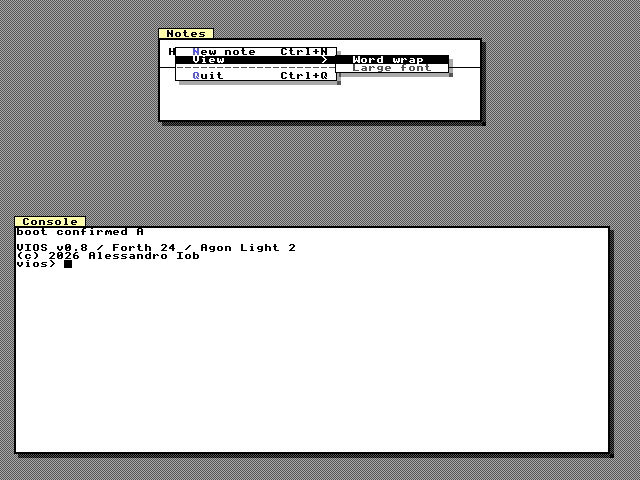
The user reaches commands in several ways, all on the ESP:
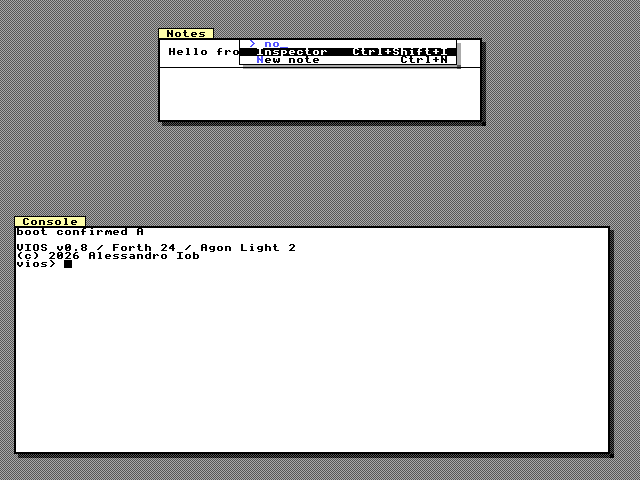
- Menus. F10 opens menu 0 (the world menu in Smalltalk, the first entry of the menu bar in Turbo Vision); Alt+letter opens the menu-bar entry with that mnemonic (Turbo Vision); Shift+F10 opens the focused window's pop-up menu. Inside a menu, Up/Down move, Enter or the mnemonic letter chooses, Right opens a submenu (or the next menu-bar entry), Left closes it (or goes to the previous entry), Esc closes one level.
- The command palette. Ctrl+K or Ctrl+Shift+P opens a list of every enabled command; typing filters it (letters in order, case ignored), Backspace removes a letter, Enter runs the selection.
- Accelerators work whenever no menu is open, before the focused widget sees the key. They are global: Ctrl+Q above fires whichever window has the focus, and the COMMAND event tells you which one.
Menu 0 is shared: the GUI tools define it as their World menu with Browser, Workspace, Inspector and Manager. Redefining menu 0 replaces it.
Widgets
Widgets are controls drawn by the ESP into a window's surface. They take keys
and clicks locally and report what happened as events. Create one with
UI-WIDGET ( id window kind parent col row w h flags -- ):
| Kind | Value | What it is | Text | Value |
|---|---|---|---|---|
UI-BOX |
1 | invisible container that lays out its children | - | - |
UI-LABEL |
2 | one line of text | caption | - |
UI-BUTTON |
3 | push button [ Go ] |
caption | - |
UI-CHECK |
4 | check box [x] |
caption | 0 or 1 |
UI-RADIO |
5 | radio button (*); same parent = one group |
caption | 0 or 1 |
UI-INPUT |
6 | one-line input field, 47 characters | contents | caret position |
UI-LIST |
7 | scrolling list or table | table header | selected row |
UI-PROGRESS |
8 | progress bar with percentage | - | 0..100 |
UI-TEXTVIEW |
9 | multi-line text editor (Text views) | - | dirty flag |
UI-TABS |
10 | a row of tabs | labels separated by \| |
selected tab |
Flags: UI-HIDDEN 1, UI-DISABLED 2,
UI-WF-FILL 4 (a root box that covers the whole client area
and follows the window's size), UI-READONLY 8 (TextView),
UI-TREE 16 and UI-PAGER 32 (lists).
Widget ids are global: id 5 is one widget, whatever window it is in, and creating a widget with an id in use replaces the old one. The widgets of a window are forgotten when it closes.
Layout. You can place a widget at col row w h in client cells, but it is
easier to let boxes do it. UI-LAYOUT ( id layout gap -- )
makes a box arrange its children in creation order, as a column
(UI-COLUMN, 1) or a row (UI-ROW, 2), with
gap empty cells between them. UI-WSIZE
( id fixed weight -- ) gives a child a fixed number of cells along the box's
direction, or (with fixed 0) a share of what is left, by weight. Boxes nest,
and the layout follows the window when it is resized or zoomed. In the gap
between two panes (lists, text views, boxes) the server draws a one-pixel
divider line; gaps next to buttons, labels and inputs stay blank.
Setting and reading. UI-WTEXT ( addr len id -- ) and
UI-WVALUE ( id value -- ) set the text and value columns of
the table above. UI-WGET ( id addr -- value len ) reads them
back (at most 25 characters of text). UI-WFOCUS ( id -- )
moves the keyboard to a widget, UI-WDELETE ( id -- )
deletes it with its children.
Lists and tables. UI-ITEMS ( id count -- ) sets the number
of rows, UI-ITEM ( addr len id index -- ) sets one row.
UI-COLUMNS ( w1 .. wn n id -- ) turns a list into a table
of up to 8 columns: rows and the header (the widget text) then separate their
cells with a tab character (9). A UI-TREE list sends EXPAND events for Right
and Left; your program rewrites the rows (indent them, mark them with + or
-). A UI-PAGER list sends PAGE events when the user moves past its first or
last row, so a long or endless sequence can be shown a page at a time (the
Inspector's memory view works this way).
The keys each widget understands are listed in the keyboard reference. In short: Tab and Shift+Tab move between the focusable widgets of the window in creation order, Space presses buttons and toggles check boxes and radios, Enter presses buttons and activates inputs and lists, lists move with the arrows, PgUp/PgDn, Home/End and type-ahead, and Ctrl+Tab changes the tab of the window's tabs widget.
This program builds a window with one widget of every kind. The small helpers
W (create a widget in this window) and TAB2 (join two strings with a tab)
keep it short:
4 CONSTANT GAL   3 CONSTANT GSF
CREATE RB 48 ALLOT   VARIABLE RL
: R+ ( addr len -- )  DUP >R  RB RL @ + SWAP MOVE  R> RL +! ;
: TAB2 ( a1 u1 a2 u2 -- addr len )  2SWAP 0 RL !  R+  9 RB RL @ + C!  1 RL +!  R+  RB RL @ ;
CREATE NL 10 C,
: W ( id kind parent -- )  >R GAL SWAP R> 0 0 0 0 0 UI-WIDGET ;
: GALLERY ( -- )
  UI-BEGIN
  GSF 62 11 48 UI-SURFACE
  GAL GSF 24 24 62 11 UI-VISIBLE UI-DECOR OR UI-SHADOW OR UI-WINDOW
  S" Widgets" GAL UI-TITLE
  0 GAL UI-BOX UI-NONE 0 0 0 0 UI-WF-FILL UI-WIDGET   0 UI-COLUMN 1 UI-LAYOUT
  1 UI-TABS 0 W   1 1 0 UI-WSIZE   S" Controls|Lists|Text" 1 UI-WTEXT
  2 UI-BOX 0 W    2 0 1 UI-WSIZE   2 UI-ROW 1 UI-LAYOUT
  3 UI-BOX 2 W    3 24 0 UI-WSIZE  3 UI-COLUMN 0 UI-LAYOUT
  4 UI-LABEL 3 W     4 1 0 UI-WSIZE   S" A label" 4 UI-WTEXT
  5 UI-BUTTON 3 W    5 1 0 UI-WSIZE   S" &Button" 5 UI-WTEXT
  6 UI-CHECK 3 W     6 1 0 UI-WSIZE   S" &Check box" 6 UI-WTEXT   6 1 UI-WVALUE
  7 UI-RADIO 3 W     7 1 0 UI-WSIZE   S" Radio &one" 7 UI-WTEXT   7 1 UI-WVALUE
  8 UI-RADIO 3 W     8 1 0 UI-WSIZE   S" Radio &two" 8 UI-WTEXT
  9 UI-INPUT 3 W     9 1 0 UI-WSIZE   S" an input field" 9 UI-WTEXT
  11 UI-PROGRESS 3 W 11 1 0 UI-WSIZE  11 60 UI-WVALUE
  10 UI-LIST 2 W     10 0 1 UI-WSIZE
  8 10 2 10 UI-COLUMNS   S" Word" S" Kind" TAB2 10 UI-WTEXT
  10 3 UI-ITEMS
  S" DUP" S" primitive" TAB2 10 0 UI-ITEM
  S" SQUARE" S" colon" TAB2 10 1 UI-ITEM
  S" BASE" S" variable" TAB2 10 2 UI-ITEM
  12 UI-TEXTVIEW 2 W  12 0 1 UI-WSIZE
  S" : SQUARE ( n -- n*n )" 12 UI-TEXT  NL 1 12 UI-TEXT+  S"   DUP * ;" 12 UI-TEXT+
  13 UI-LABEL 0 W    13 1 0 UI-WSIZE   S" Tab: next widget   Ctrl+Tab: next tab" 13 UI-WTEXT
  GAL UI-FOCUS
  UI-COMMIT ;
GALLERY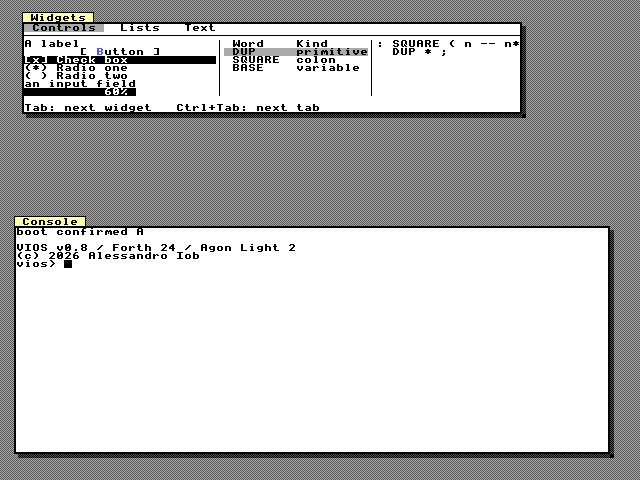
Appending rows: UI-ROW+
UI-ROW+ ( addr len id -- ) appends one row to list id
(protocol op 92), like UI-TEXT+ appends text. UI-ROW
without the + is the layout constant 2 for UI-LAYOUT.
10 0 UI-ITEMS                            \ list 10 starts empty
S" first" 10 UI-ROW+  S" second" 10 UI-ROW+
Text views
A TextView (UI-TEXTVIEW) is a small text editor run by the
ESP: up to 4096 bytes in lines ending in a line feed, with a caret, a selection,
scrolling and a 1 KB clipboard, all without the CPU. The GUI tools use it for
the Browser's code pane, the Workspace and the read-only report panes. Four can
exist at a time, including the tools' own.
UI-TEXT( addr len id -- )replaces the text,UI-TEXT+appends to it.UI-SELECT( id caret anchor -- )sets the caret and the selection (byte offsets; equal values mean no selection).UI-INSERT( addr len id -- )replaces the selection with up to 200 bytes and selects what it inserted.UI-TEXT@( id addr max -- len )copies the text back to the CPU.UI-WVALUEon a TextView sets or clears its dirty flag. The first edit after the flag was cleared sends one CHANGE event.
12 8 2 UI-SELECT                         \ select "SQUARE" in the gallery's text view
S" SQ" 12 UI-INSERT                      \ now ": SQ ( n -- n*n )", "SQ" selected
12 0 UI-WVALUE                           \ not dirty
UI-COMMIT
CREATE BUF 256 ALLOT
12 BUF 256 UI-TEXT@ BUF SWAP TYPE \ needs the ESP: prints the textWith the UI-READONLY flag the caret moves and text can be
selected and copied, but not changed. A TextView also turns four keys into TEXT
events for the program: Ctrl+S (accept), Ctrl+D (do it), Ctrl+P
(print it) and Ctrl+I (inspect it). For the last three, with nothing
selected, the server first selects the caret's line. The event carries the
selection, so the program can read exactly that range and evaluate it; this is
how the Workspace works. Ctrl+[ and Ctrl+] add or
remove two spaces at the start of every selected line. Tab leaves the view
(there is no tab character).
Events
Every user action that matters to the program becomes an event in the ESP's
queue. UI-NEXT ( -- kind id arg true | false ) takes the next
one, decoded; UI-EVENT ( addr -- len ) stores the raw bytes
(seq kind id and up to 26 argument bytes) and returns the length, 0 if none.
Both first look in the CPU's 8-event ring and poll the ESP when it is empty.
arg is the first two argument bytes as an unsigned number (just the first if
there is only one). Most events need nothing more:
| Kind | Value | id | arg | More (UI-EVENT bytes) |
|---|---|---|---|---|
UI-EV-ACTIVATE |
2 | widget | window | |
UI-EV-SELECT |
3 | widget (list, tabs) | row or tab | window |
UI-EV-CHANGE |
4 | widget | new value (input: text length) | window |
UI-EV-TEXT |
5 | TextView | low byte: 1 accept, 2 do it, 3 print it, 4 inspect it | selection start, end, window |
UI-EV-FOCUS |
6 | window now focused (255 none) | previous window | |
UI-EV-POINTER |
7 | window under the pointer (255 desktop) | x | y, column, row, part, buttons |
UI-EV-EXPAND |
8 | tree list | row | window, 1 open / 0 close |
UI-EV-PAGE |
9 | pager list | low byte: 1/255 down/up, 2/254 page down/up | window |
UI-EV-OVERFLOW |
14 | 0 | events lost | |
UI-EV-ERROR |
15 | 0 | refused op + 256 * offset | |
UI-EV-WIN |
16 | window | low byte: 1 moved, 2 close request, 3 zoomed, 4 restored | x, y, cols, rows |
UI-EV-COMMAND |
17 | focused window | command id | source: 1 menu, 2 key, 3 palette |
UI-EV-ANIMDONE |
18 | window or sprite | target + 256 * property | |
UI-EV-CANVAS |
19 | canvas | x in canvas pixels | y, the item under the point (255 none) |
For "low byte" rows take arg 255 AND, because the second byte of arg is
already the next argument.
Kind 20 carries the text lines of /dev/win/N/event files to the handle
layer (see Windows as files: /dev/win); while such a
file is open, that node's events never reach UI-NEXT.
Some practical points:
- Polling costs a round trip over the serial link. Handle every waiting event,
then wait a little (
20 MS) before asking again, rather than spinning. - The ESP queue holds 16 events. If your program does not read them, the oldest are dropped and an OVERFLOW event says how many.
- The event words wait for the ESP, so they run only in the foreground task, never in a background task.
- The GUI tools take their own events (commands $7F00..$7FFF, their windows 20
to 24 and widgets 40 to 63) out of the stream before
UI-NEXTsees it, so your loop never receives them. They handle them when the REPL is idle again.
A convenient pattern is to copy the event into three variables and test them with a small helper:
VARIABLE KIND   VARIABLE WHO   VARIABLE ARG
: EVENT? ( -- flag )  UI-NEXT DUP IF >R ARG ! WHO ! KIND ! R> THEN ;
: IS? ( kind id -- flag )  WHO @ =  SWAP KIND @ =  AND ;
: CLOSING? ( window -- flag )  UI-EV-WIN SWAP IS?  ARG @ 255 AND 2 =  AND ;
UI-EV-ACTIVATE 5 IS? is then true when button 5 was pressed, and
1 CLOSING? when the user asked to close window 1.
Tutorial: a window with widgets and an event loop
This section builds a small "Greeter" window step by step: a label, an input
field, a check box, an answer line and two buttons. Type each step at the
console (or put them in a file and LOAD it). It reuses EVENT?, IS? and
CLOSING? from the previous section.
Step 1: a surface and a window. Window 2 shows surface 1, 40 x 9 cells, at pixel 160, 120. The window needs a surface even if only widgets will be in it, because widgets draw into the surface.
2 CONSTANT GWIN   1 CONSTANT GSURF
GSURF 40 9 48 UI-SURFACE
GWIN GSURF 160 120 40 9 UI-VISIBLE UI-DECOR OR UI-SHADOW OR UI-WINDOW
S" Greeter" GWIN UI-TITLE
GWIN UI-FOCUS  UI-COMMIT
Step 2: the widgets. A root box (id 20) with UI-WF-FILL covers the client
area and stacks its children in a column with one empty row between them. Each
child takes one row (1 0 UI-WSIZE). The two buttons sit side by side in a
second box (id 25) laid out as a row. Building everything inside UI-BEGIN ...
UI-COMMIT makes the window appear complete in one frame.
UI-BEGIN
20 GWIN UI-BOX UI-NONE 0 0 0 0 UI-WF-FILL UI-WIDGET   20 UI-COLUMN 1 UI-LAYOUT
21 GWIN UI-LABEL 20 0 0 0 0 0 UI-WIDGET   21 1 0 UI-WSIZE   S" Your name:" 21 UI-WTEXT
22 GWIN UI-INPUT 20 0 0 0 0 0 UI-WIDGET   22 1 0 UI-WSIZE
23 GWIN UI-CHECK 20 0 0 0 0 0 UI-WIDGET   23 1 0 UI-WSIZE   S" &Shout" 23 UI-WTEXT
24 GWIN UI-LABEL 20 0 0 0 0 0 UI-WIDGET   24 1 0 UI-WSIZE
25 GWIN UI-BOX 20 0 0 0 0 0 UI-WIDGET     25 1 0 UI-WSIZE   25 UI-ROW 2 UI-LAYOUT
26 GWIN UI-BUTTON 25 0 0 0 0 0 UI-WIDGET  S" &Greet" 26 UI-WTEXT
27 GWIN UI-BUTTON 25 0 0 0 0 0 UI-WIDGET  S" &Close" 27 UI-WTEXT
22 UI-WFOCUS
UI-COMMIT
You can already use the window: type into the field, Tab to the check box and press Space, Tab to the buttons. All of that happens on the ESP; the CPU is not involved yet.
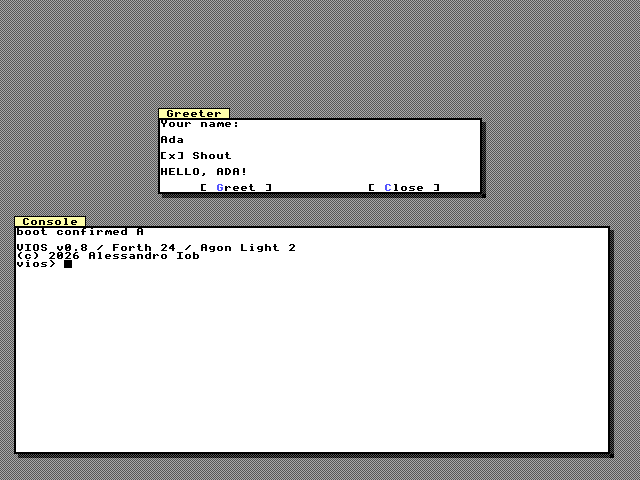
Step 3: reading the field and answering. GREET reads the input field with
UI-WGET (which returns the value, here the caret position, and the text
length), builds "Hello, name!" in a buffer, upper-cases it when the check box
is ticked, and shows it in label 24.
CREATE NAME 32 ALLOT
CREATE ANSWER 48 ALLOT   VARIABLE ALEN
: A+ ( addr len -- )  DUP >R  ANSWER ALEN @ + SWAP MOVE  R> ALEN +! ;
: UPCASE ( addr len -- )
  BOUNDS ?DO I C@ DUP 97 123 WITHIN IF 32 - I C! ELSE DROP THEN LOOP ;
: GREET ( -- )
  0 ALEN !  S" Hello, " A+
  22 NAME UI-WGET NIP  NAME SWAP A+  S" !" A+
  23 NAME UI-WGET DROP  IF ANSWER ALEN @ UPCASE THEN
  ANSWER ALEN @ 24 UI-WTEXT ;
Step 4: the event loop. GSTEP handles every event that is waiting: the
Greet button and Enter in the input field (both ACTIVATE events) greet, the
Close button and a close request (Ctrl+W) end the loop. GREETER repeats it
every 20 ms until done, then closes the window.
VARIABLE GDONE
: GHANDLE ( -- )
  UI-EV-ACTIVATE 26 IS?  UI-EV-ACTIVATE 22 IS?  OR IF GREET THEN
  UI-EV-ACTIVATE 27 IS?  GWIN CLOSING?  OR IF TRUE GDONE ! THEN ;
: GSTEP ( -- )  BEGIN EVENT? WHILE GHANDLE REPEAT ;
: GREETER ( -- )
  FALSE GDONE !
  BEGIN GSTEP 20 MS  GDONE @ UNTIL
  GWIN UI-CLOSE ;
Run it on the board:
GREETERThe REPL is busy while GREETER runs. To keep the console free, give the loop
its own key to stop it, or run the loop only from the console when you need it:
the event words cannot run in a background task. When the loop ends,
GWIN UI-CLOSE removes the window and its widgets; run steps 1 and 2 again to
reopen it.
Animation and tweens
The ESP can move windows and sprites smoothly by itself.
UI-ANIMATE ( target id prop from to ms easing -- ) starts
a tween:
targetisUI-TWEEN-WINDOWorUI-TWEEN-SPRITE;propisUI-XorUI-Yin pixels, or for a windowUI-SCROLL-ROW/UI-SCROLL-COL(scrolling the surface inside it);fromandtoare signed,msis the duration (0 jumps at once);easingisUI-LINEAR,UI-IN-OUT,UI-OUTorUI-SPRING, which overshoots and settles back.
The tween advances once per frame, so it costs the CPU one op however long it
runs. A new tween on the same object and property replaces the running one; up
to 16 run at once. UI-STOP ( target id prop -- ) freezes one
where it is. When a tween ends, an ANIMDONE event reports it.
UI-TWEEN-WINDOW 1 UI-Y 480 80 700 UI-SPRING UI-ANIMATE \ the Notes window drops in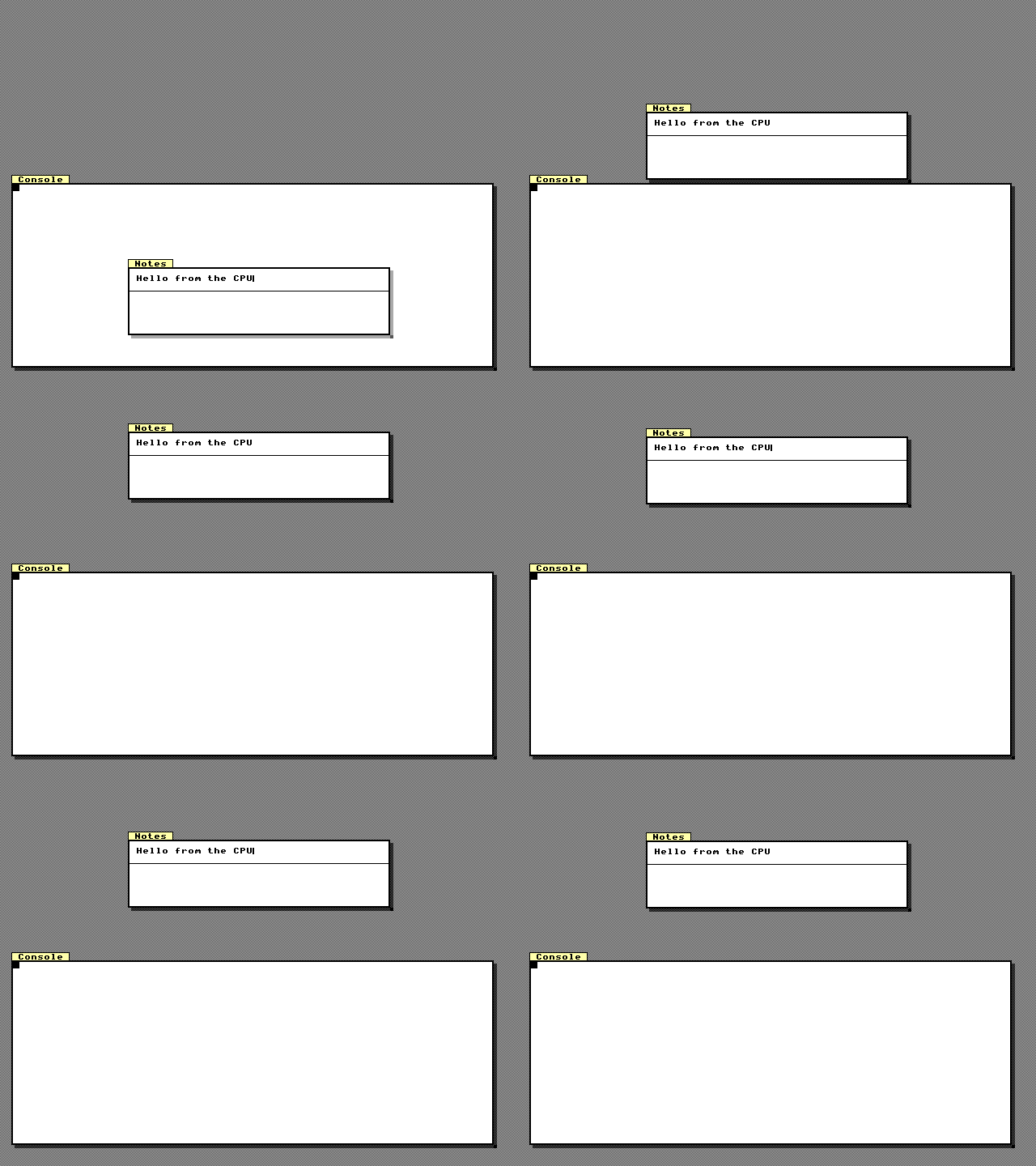
Window x positions are still snapped to 8 pixels during a tween unless the
window has UI-FREE-X or the snap is 1; y moves pixel by pixel.
Canvases and icons
A canvas puts pixel graphics into a window: lines, rectangles, filled boxes, ovals, discs, two-colour stipples, text at any pixel and icons. You describe the picture once as a display list that the ESP keeps, then change single items. The CPU never sends pixels and keeps no copy of the picture: only a two-byte pen (the current canvas and colour).
The model.
- A canvas is a
w × hpixel rectangle placed on a surface at pixel positionx y(x a multiple of 8). Every window that shows the surface shows the canvas, and it scrolls with the window. When the surface's cells scroll (console style), the canvas stays where it is. - It has a background colour, or it is transparent (the surface's text shows through wherever nothing is drawn).
- Its items have ids 0–254 and draw in id order, higher ids on top. Setting an item that exists replaces it, so you can leave gaps in the numbering and fill them later.
- The ESP keeps a 4-bit backing raster per canvas and redraws only the part an edit touched, at the start of the next frame and within the frame's time budget. A canvas therefore costs about what the same area of text costs to compose, however many items it has.
- Colours are palette indices 0–15. Indices 4–15 change with the style (Smalltalk or Turbo Vision); 0–3 look the same in both.
| Limit | Value |
|---|---|
| Canvases | 8 (ids 0–7) |
| Canvas size | up to 640 × 480; all rasters together at most 256 KB |
| Items | 255 per canvas (ids 0–254) |
| Text item | up to 20 characters |
| Bitmaps | 32 ids: 0–23 your own (up to 64 × 64, 4 bits per pixel), 24–31 built-in 16 × 16 icons |
Drawing. Create the canvas with UI-CANVAS, choose it
and a colour with UI-PEN, then set items:
| Word | Stack | Item |
|---|---|---|
UI-DOT |
( item x y -- ) | one pixel |
UI-LINE |
( item x0 y0 x1 y1 -- ) | a line, both ends included |
UI-RECT |
( item x y w h -- ) | a 1-pixel outline |
UI-BAR |
( item x y w h -- ) | a filled rectangle |
UI-OVAL |
( item x y w h -- ) | an ellipse outline in the box |
UI-DISC |
( item x y w h -- ) | a filled ellipse |
UI-STIPPLE |
( item x y w h colour2 -- ) | a checker of the pen colour and colour2: the 16-colour way to shade |
UI-PRINT |
( addr n item x y -- ) | text in the 8×8 font at any pixel, transparent background |
UI-ICON |
( item x y bitmap -- ) | a bitmap; its transparent colour is skipped |
The shapes all go through one native word, UI-SHAPE, so
they cost no dictionary slots beyond their colon definitions. Coordinates are
canvas pixels and may be negative; everything is clipped to the canvas.
Editing. UI-NUDGE ( item dx dy -- ) moves an item,
UI-INK ( item colour -- ) recolours it,
UI-ERASE ( item -- ) deletes it, and
UI-WIPE deletes them all. UI-CANVAS-AT
moves the whole canvas on its surface, and
UI-CANVAS-FLAGS shows it, hides it, makes it
transparent or (with flags −1) deletes it. A tween can slide a canvas
without the CPU: target UI-TWEEN-CANVAS in
UI-ANIMATE.
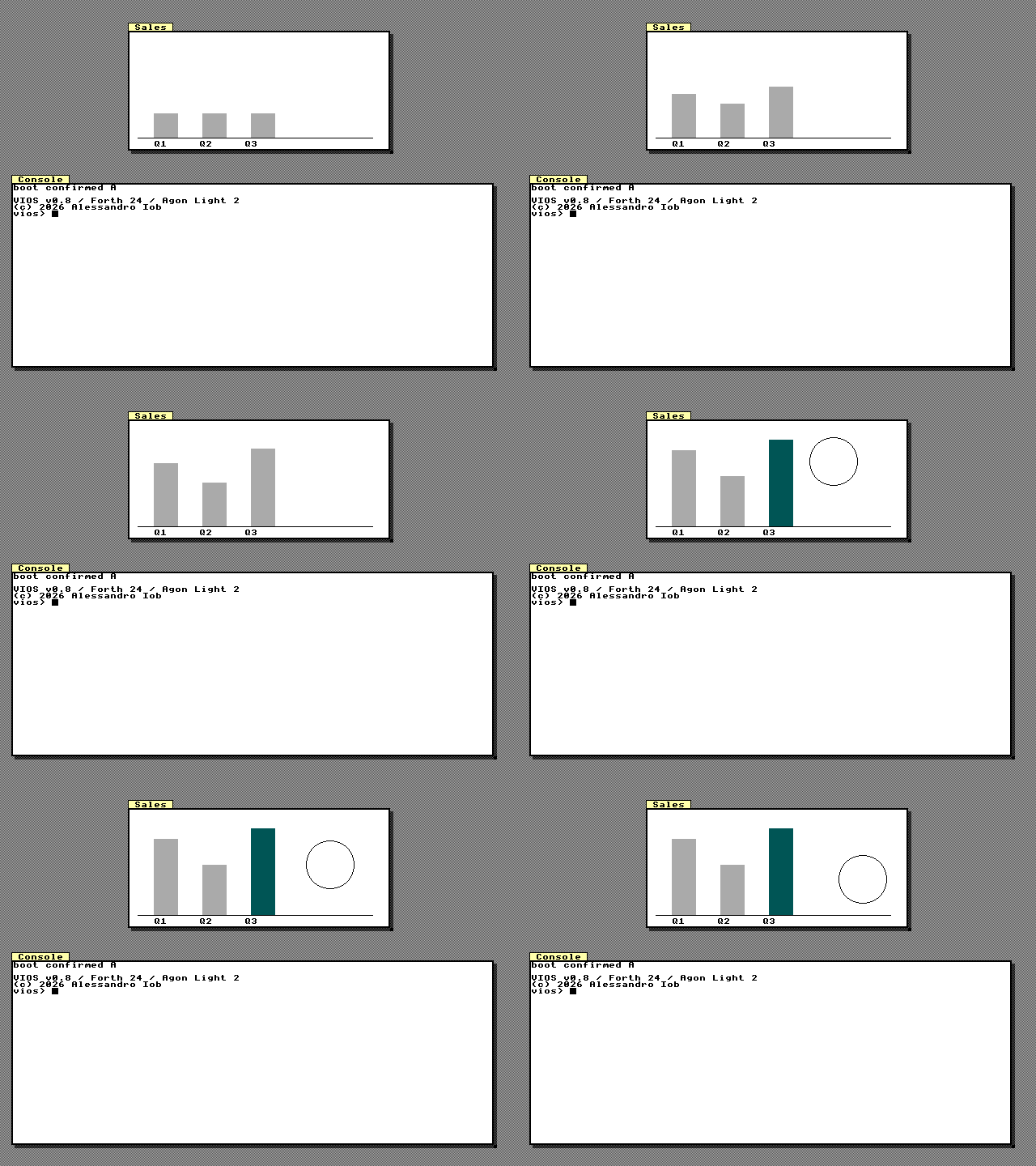
A bar chart in which one bar later changes:
2 40 18 48 UI-SURFACE                                \ surface 2: 40x18 cells
5 2 160 100 40 18 UI-VISIBLE UI-DECOR OR UI-SHADOW OR UI-WINDOW
S" Sales" 5 UI-TITLE
3 2 0 0 320 144 3 UI-CV-VISIBLE UI-CANVAS             \ canvas 3 fills it, white
3 0 UI-PEN  0 10 130 300 130 UI-LINE                  \ item 0: the axis
3 4 UI-PEN  1 20 60 30 70 UI-BAR                      \ item 1: a bar in colour 4
            2 70 90 30 40 UI-BAR                      \ item 2: another
3 0 UI-PEN  S" Q1  Q2" 3 20 134 UI-PRINT              \ item 3: the captions
UI-COMMIT
1 0 -20 UI-NUDGE  UI-COMMIT                           \ later: bar 1 grows 20 px
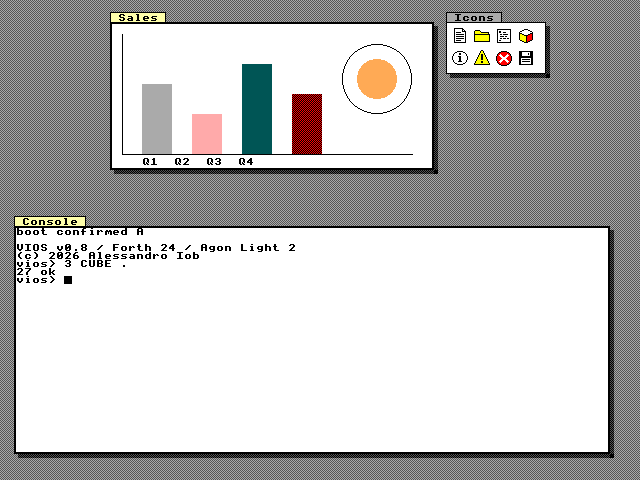
Icons. Eight 16 × 16 icons are built into the firmware as bitmaps 24–31:
UI-ICON-DOCUMENT, UI-ICON-FOLDER, UI-ICON-WORD,
UI-ICON-MODULE, UI-ICON-INFO, UI-ICON-WARNING, UI-ICON-ERROR and
UI-ICON-DISK. Your own bitmaps (ids 0–23) are defined with
UI-BITMAP ( bitmap w h transparent -- ) and filled with
UI-BITS ( addr n bitmap offset -- ): 4 bits per pixel, two
pixels a byte, rows packed. The bitmap pool is shared by all canvases.
4 2 0 0 160 24 3 UI-CV-VISIBLE UI-CANVAS              \ a strip of icons on surface 2
4 0 UI-PEN
: ICONS ( -- ) 8 0 DO  I  I 20 * 4 +  4  I 24 +  UI-ICON  LOOP ;
ICONS UI-COMMIT
Events. A click inside a visible canvas also queues a
UI-EV-CANVAS event: the canvas id, the point in canvas
pixels and the topmost item there (255 for none), besides the ordinary pointer
event. With the keyboard pointer (Ctrl+F12) this works without a mouse.
Resetting. UI-RESET drops every canvas and your
bitmaps; the built-in icons stay.
Sprites and the pointer
Sprites are small 4-bit bitmaps drawn above all windows, higher ids on top. A sprite is up to 64 x 64 pixels; all sprites share a 4096-byte pixel pool on the ESP.
UI-SPRITE( id w h hotx hoty transparent -- )defines one, hidden: its size, its hotspot (the pixel that sits at the sprite's position) and the colour index that is transparent.UI-PIXELS( addr len id offset -- )sends the pixels: rows of(w + 1) / 2bytes, the high nibble is the left pixel.UI-SPRITE-AT( id x y -- )moves it,UI-SPRITE-SHOW( id flag -- )shows or hides it.
HEX
CREATE BALL                              \ 8 x 8, colour F transparent, 0 outline, 2 yellow
  FF C, 00 C, 00 C, FF C,   F0 C, 22 C, 22 C, 0F C,
  02 C, 22 C, 22 C, 20 C,   02 C, 22 C, 22 C, 20 C,
  02 C, 22 C, 22 C, 20 C,   02 C, 22 C, 22 C, 20 C,
  F0 C, 22 C, 22 C, 0F C,   FF C, 00 C, 00 C, FF C,
DECIMAL
1 8 8 4 4 15 UI-SPRITE
BALL 32 1 0 UI-PIXELS
1 320 60 UI-SPRITE-AT  1 TRUE UI-SPRITE-SHOW
UI-TWEEN-SPRITE 1 UI-Y 60 400 900 UI-SPRING UI-ANIMATE  \ and it bounces
Sprite 15 (UI-CURSOR) is the pointer.
UI-ARROW ( id -- ) gives a sprite the built-in 12 x 16
arrow, and UI-POINTER ( x y buttons -- ) reports a pointer
position and button state to the server the way a mouse driver would: the arrow
moves there, a press focuses the window under it (and clicks the widget there),
and each button change sends a POINTER event.
UI-CURSOR UI-ARROW
320 240 0 UI-POINTER                     \ the arrow appears at the centre
Without a mouse, Ctrl+F12 turns the keyboard into the pointer: the arrows move it by 8 pixels (Shift: 1 pixel), Space or Enter clicks, Esc or Ctrl+F12 again leaves.
Raw mode and reset
UI-RAW ( flag -- ) hands the screen to the classic VDU
drawing words: TRUE UI-RAW stops the compositor from drawing, FALSE UI-RAW
takes the screen back and repaints everything. Use it around code that draws
with PLOT and friends directly (see Display and Graphics).
UI-RESET resets the whole server: every window, surface,
sprite, widget, command and menu goes, the style returns to Smalltalk and the
snap to 8. The server's own Console window comes back at once, and the GUI
tools reinstall their commands and world menu, so the desktop stays usable.
Close your own windows with UI-CLOSE when you only want to tidy up, and keep
UI-RESET for test setups.
Windows as files: /dev/win
Every window and widget the display server holds is also a set of text files
under /dev/win, in the spirit of Plan 9's window system. You can build,
inspect and drive a user interface with nothing but
OPEN, READ, WRITE and
CLOSE (see Handles, Pipes and Devices),
from Forth, from a task, or from the Mac. The ESP renders and parses the text,
so the files always show the server's real state; the CPU only keeps the read
position of each open handle.
| File | Read | Write |
|---|---|---|
/dev/win |
one line per node: id kind parent name rect (windows first, then widgets in creation order) |
— |
/dev/win/new |
the id of the node made last | kind parent name, one node per line |
/dev/win/N/ctl |
the node's properties, one per line | commands, one per line |
/dev/win/N/text |
the content: a label's text, a list's rows, a text view's text, a window's title | replaces the content (later writes on the same handle append) |
/dev/win/N/event |
the node's events as text lines (a stream: a read waits for the next) | — |
/dev/ui/tree |
Forth source that rebuilds every window and widget | — |
N is a widget id (0–63) or w and a window id (w0–w26). Names
show spaces as _ and - when empty. Kinds are window, box, label,
button, check, radio, input, list, progress, text (a text view)
and tabs.
Making nodes. Write window - Title to /dev/win/new for a window (it
gets the lowest free id and its own 32 × 12 surface), or kind parent name
for a widget whose parent is a window (w0) or a box. The new node takes the
lowest free id; reading /dev/win/new gives the id made last, and /dev/win
lists them all.
ctl commands: rect a b c d (a window: x y cols rows in pixels and
cells; a widget: col row w h), text T, name T, show 0|1, flags F,
focus, raise (a window), value V, layout L G and size F W (boxes and
their children), style S (a widget's look: 0 normal, 1 strong, 2 fault, drawn
in red), theme T (the whole display: 0 Smalltalk, 1 Turbo Vision), close
(a window, freeing the surface it was given) and delete. From Forth,
UI-WSTYLE ( id style -- ) sets a widget's style.
A small window built from the console with two helper words:
CREATE BUF 256 ALLOT
: SPIT ( addr u path pu -- ) 2 OPEN >R R@ WRITE DROP R> CLOSE DROP ;
: SLURP ( path pu -- ) 1 OPEN >R BUF 256 R@ READ BUF SWAP TYPE R> CLOSE DROP ;
S" window - Greeter" S" /dev/win/new" SPIT
S" /dev/win" SLURP
w0 window - Greeter 64 64 32 12S" label w0 msg" S" /dev/win/new" SPIT
S" button w0 hello" S" /dev/win/new" SPIT
S" rect 2 2 20 1" S" /dev/win/0/ctl" SPIT
S" Hello from a file!" S" /dev/win/0/text" SPIT
S" rect 2 5 12 1" S" /dev/win/1/ctl" SPIT
S" text &Again" S" /dev/win/1/ctl" SPIT
S" /dev/win/1/ctl" SLURPkind button
parent w0
name hello
rect 2 5 12 1
show 1
flags 0
value 0
count 0
layout 0 0
size 0 1
focus 1
style 0
text &Again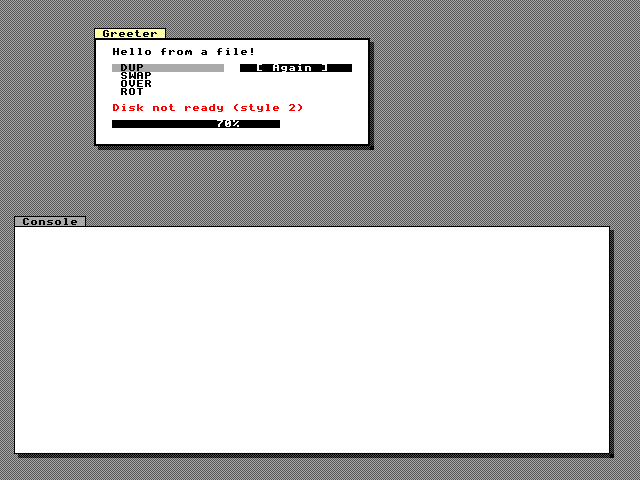
Events as a stream. Opening /dev/win/N/event routes that node's events
into a pipe as lines such as activate, change 1, select 7, page -1,
moved 80 48 40 16, close or command 12 1, instead of
UI-NEXT. A task can wait on it with
READ-WAIT without polling the display server; closing the
file hands the node's events back to UI-NEXT.
CREATE EV 64 ALLOT
: CLICKS ( -- )   \ a task: count the button's activations on the console
  S" /dev/win/1/event" 1 OPEN >R
  BEGIN EV 64 R@ READ-WAIT DUP 0 > WHILE EV SWAP TYPE REPEAT
  DROP R> CLOSE DROP ;
' CLICKS SPAWN-CON .
Snapshots. /dev/ui/tree, and the word UI-SNAPSHOT
that prints it, give Forth source (UI-SURFACE, UI-WINDOW, UI-WIDGET,
UI-ITEM... lines) that rebuilds the current windows and widgets. Save it to
a file and LOAD it to restore a layout, text views' text included (written
with UI-TEXT, UI-TEXT+ and
UI-CH for newlines and quotes). UI-WNAME ( addr len id -- ) gives a
widget the name /dev/win shows.
Off-screen composition
Most changes damage a small part of the screen and are composed directly into the visible framebuffer within the frame budget. A change that damages more than half the screen (the workbench opening or closing, the desktop coming back after Ctrl+Alt+F1) would otherwise sweep down the screen over a dozen frames. For those, the ESP copies the screen into a 150 KB shadow framebuffer in PSRAM, composes there, and copies the finished rows back at once, so you see the old picture and then the new one. After half a second it presents whatever is done, so a continuous flood of output cannot freeze the screen.
Performance notes
- Batch. One
UI-BEGIN...UI-COMMITaround a window's construction is both faster on the link and nicer to look at. The ESP also defers widget drawing to the end of each batch, so a widget is drawn once, not once per op. - Let the ESP do the work. Keep text in surfaces, lists and TextViews and let the ESP scroll, edit and select; move things with tweens instead of sending a new position every frame.
- Do not spin on events. Poll, handle everything that waited, then
MS. - Keep x on 8 pixels for windows that show a lot of text. Free x costs two partial stores per glyph row instead of one.
- Reuse ids. Recreating a widget with the same id replaces it cleanly;
UI-ITEMSwith a smaller count shrinks a list without touching other lists.