VIOS comes with four development tools in the spirit of a Smalltalk environment, built on the display server described in The GUI:
| Tool | Window | Shortcut | What it is for |
|---|---|---|---|
| Browser | 20 | Ctrl+Shift+B | modules, their words, facts and dependencies; edit and accept source |
| Workspace | 21 | Ctrl+Shift+W | a scratch text where you evaluate selections (do it, print it, inspect it) |
| Inspector | 22 | Ctrl+Shift+I | the data stack, memory, tasks, handles and system state |
| Manager | 23 | Ctrl+Shift+M | boot slots and module packages, behind a confirmation dialog |
The ESP does all the navigation, scrolling and editing inside the tool
windows. The CPU only fills the panes and acts on what you choose. The tools'
engine (kernel/vios_tools.c) runs from the REPL's idle hook: it acts when the
console is waiting for input, exactly as if you had typed the command there.
While a program runs in the foreground, the tool windows still scroll and edit,
but your choices (an accept, a refresh) are carried out only when the program
returns to the prompt.
Opening the tools
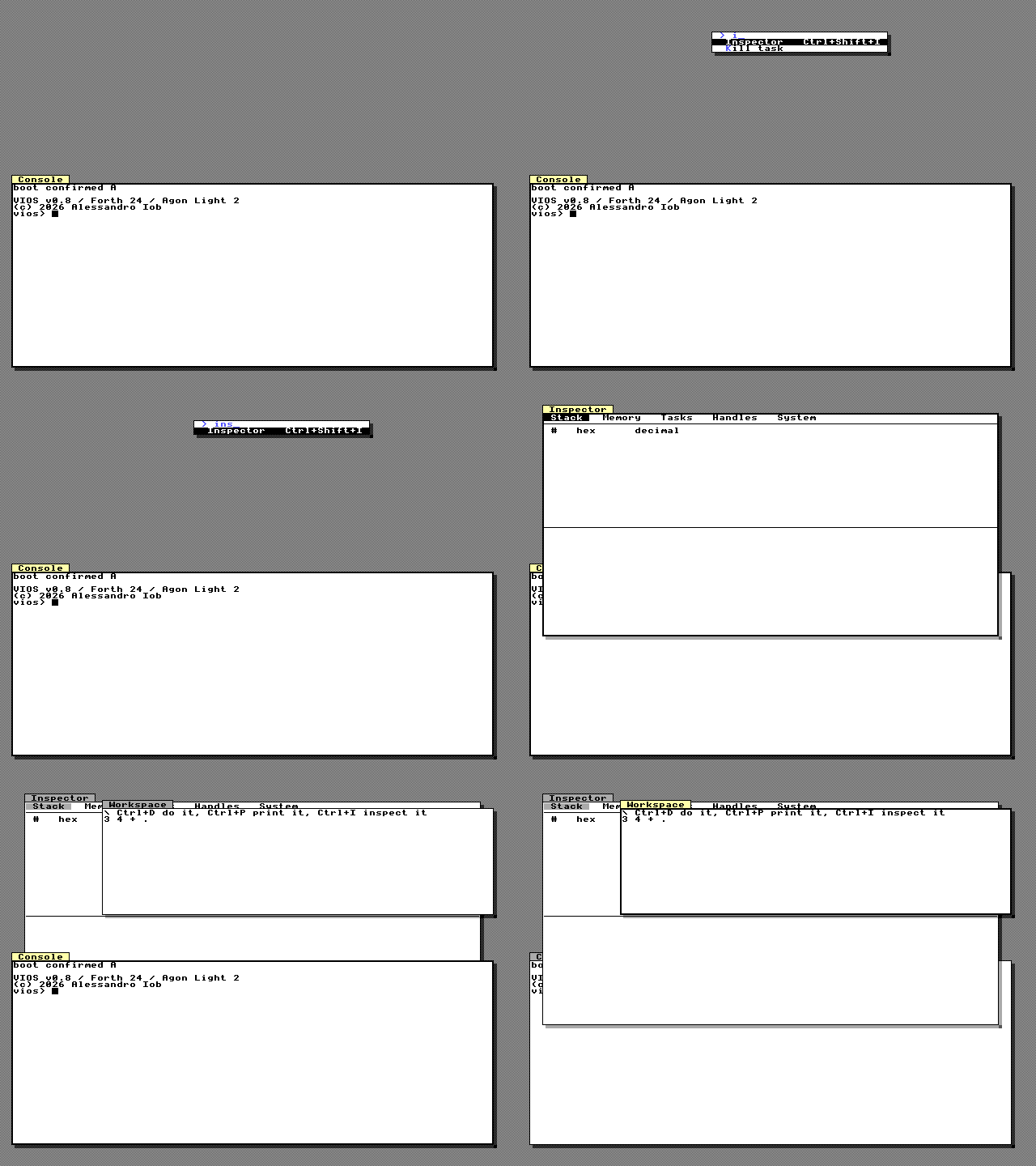
- Keyboard. Ctrl+Shift+B, Ctrl+Shift+W, Ctrl+Shift+I and Ctrl+Shift+M open the Browser, Workspace, Inspector and Manager from anywhere. A tool that is already open is brought to the front instead.
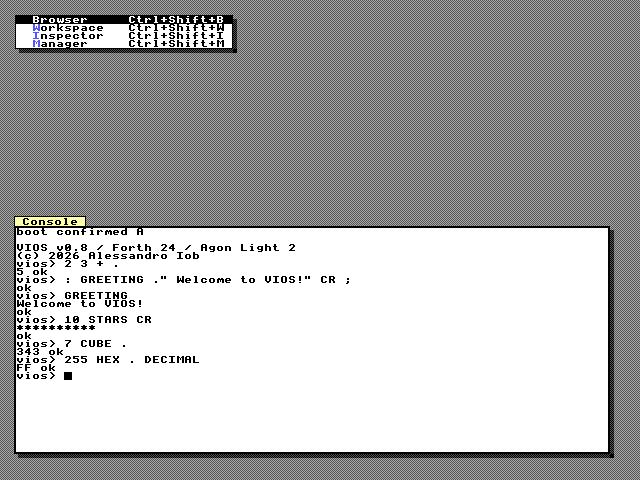
- World menu. In the Smalltalk style, F10 opens the World menu with the four tools. In the Turbo Vision style the same four commands are the entries of the menu bar along the top: F10 runs the first (Browser), Alt+B, Alt+W, Alt+I, Alt+M run the others.
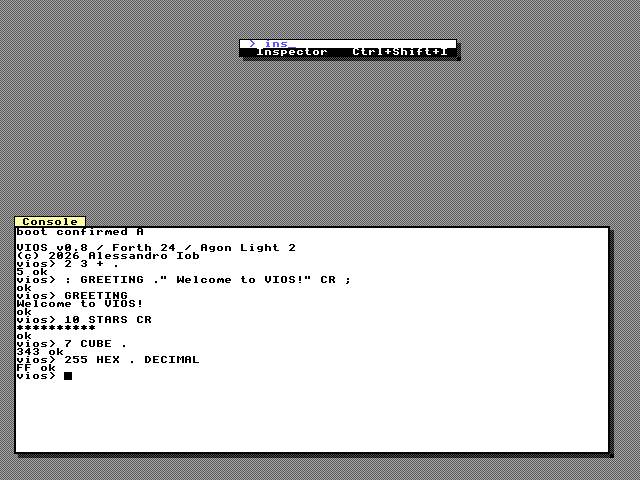
- Command palette. Ctrl+K (or Ctrl+Shift+P) and type part of the name.
- From Forth.
TOOL( n -- )opens or focuses tooln: 0 Browser, 1 Workspace, 2 Inspector, 3 Manager.-1 TOOLcloses all of them.
0 TOOL                                   \ the Browser
-1 TOOL                                  \ close every tool window
Close a tool with Ctrl+W (or Alt+F3) while it has the focus. Inside every tool, Tab and Shift+Tab move between panes, Ctrl+Tab and Ctrl+Shift+Tab change tabs, Ctrl+R refreshes the contents and Shift+F10 opens the tool's own menu (the pane menu). Keys that a tool window does not use are dropped rather than passed to the console.
The tools' accelerators are global: Ctrl+Shift+B/W/I/M and Ctrl+R are taken by the window manager in every window, including your own.
The Browser
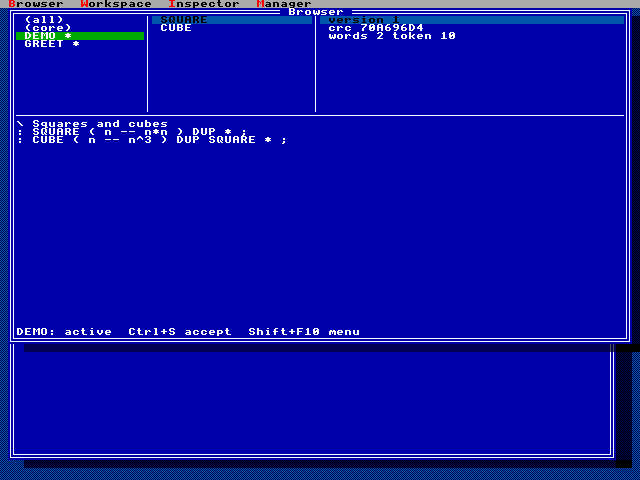
The Browser has three list panes along the top, a code pane below them and a status line at the bottom.
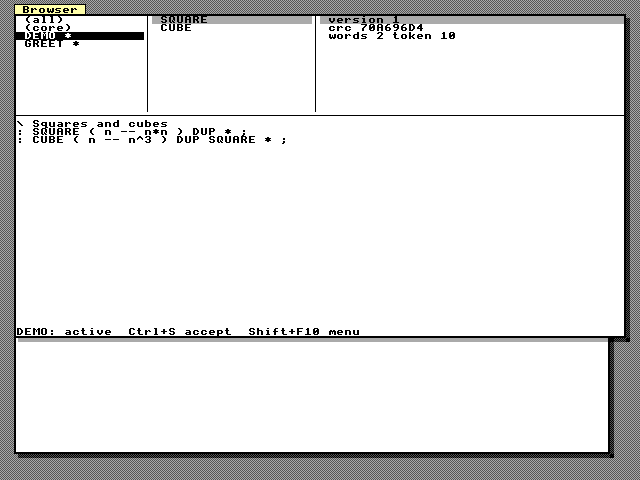
- Modules pane (left):
(all)(every word in the dictionary),(core)(words that belong to no module), then each module, marked with*when it is active. Moving the selection updates the other panes at once. - Words pane (middle): the words of the selected module. Typing a letter jumps to the next word starting with it.
- Info pane (right). For a module:
version,crc(of the source), the number ofwordsandtokenbytes, oneneeds NAME okorneeds NAME staleline per dependency (stale when the dependency's source changed since), and aused by NAMEline for every module that depends on this one. For a word: its kind (primitive,colon,constant,variable,defer,native) andxt, itstokenanddirectcode sizes, itsmoduleand, for constants and variables, itsvalue. - Code pane: the exact source of the selected module, or the retained source of the selected word. It is an ordinary editable text view.
- Status line: what the selection is and what you can do, for example
DEMO: active Ctrl+S accept Shift+F10 menu.
Accept (Ctrl+S in the code pane). What happens depends on what is shown:
- A module. The code pane's text becomes the module's new source: it is
streamed into the workbench draft, compiled and tested in isolation (stage),
then activated, the same revision-checked steps as F5 and F6 in the
text workbench. On success the status line says
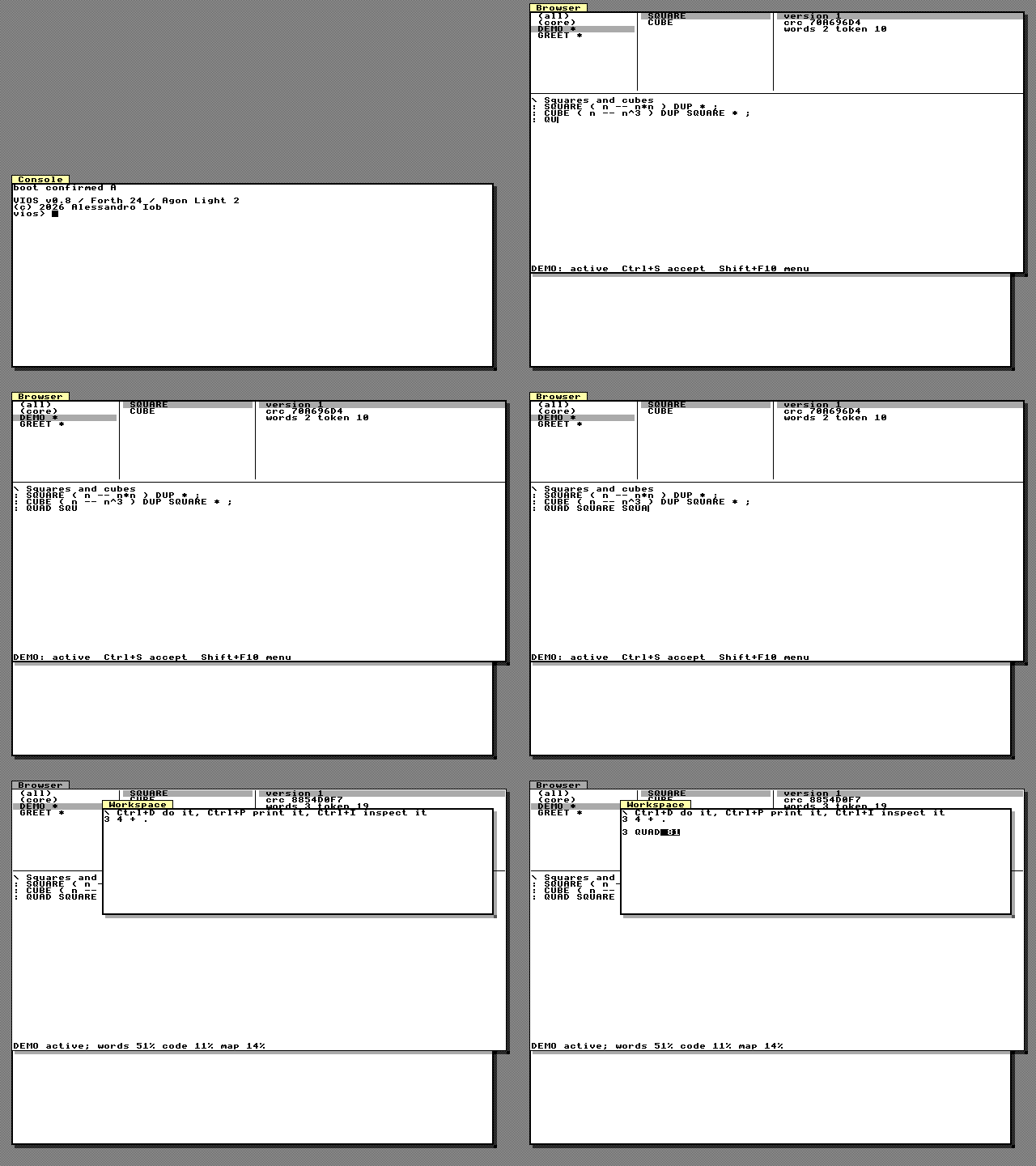
DEMO active; words 52% code 31% map 20%, showing how full the dictionary, the code space and the source map are. Every accept keeps the replaced version's code until the next restart, so when any of them passes 80 % the line names the fullest one instead, for exampleDEMO active; code 84%: save, restart. On failure it saysnot accepted:and the reason, and the live module is not touched. After an accept the words and info panes show the new version at once; the code pane keeps your text.
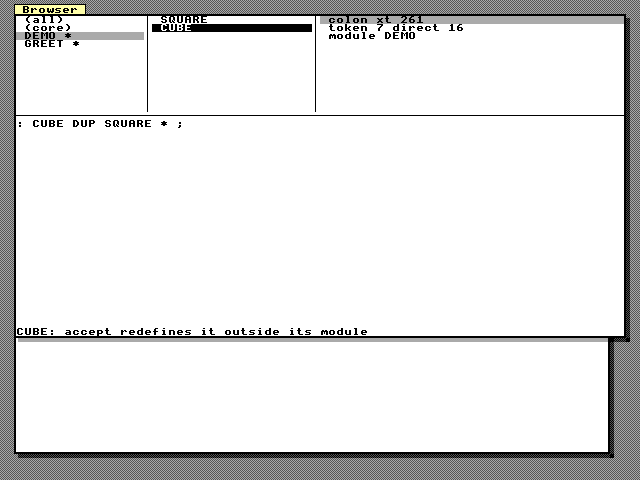
 - A single word. The text (at most 255 bytes) is evaluated, so the word is
redefined, the way a Smalltalk method accept works. For a word that belongs to
a module the status line warns that this redefines it outside its module: the
module's source is unchanged.
- A single word. The text (at most 255 bytes) is evaluated, so the word is
redefined, the way a Smalltalk method accept works. For a word that belongs to
a module the status line warns that this redefines it outside its module: the
module's source is unchanged.
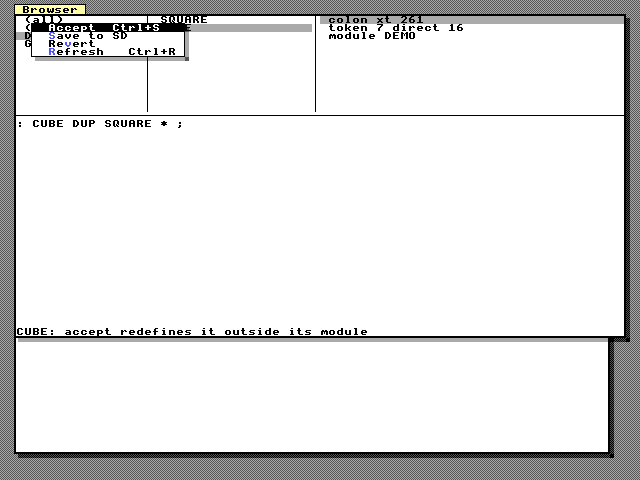
Pane menu (Shift+F10):
| Item | Effect |
|---|---|
| Accept | as Ctrl+S |
| Save to SD | save the module's active source as its package on the SD card (DEMO: saved to SD). Edits you have not accepted are not saved. When it fails, the status line says not saved: and the reason, for example while the text workbench holds a modified draft of another module |
| Revert | reload the selected module's live source into the code pane, dropping your edits |
| Refresh (Ctrl+R) | re-read the module list and the selected module |
The panes are separated by one-pixel divider lines, vertical between the lists and horizontal above the code pane.
The Workspace
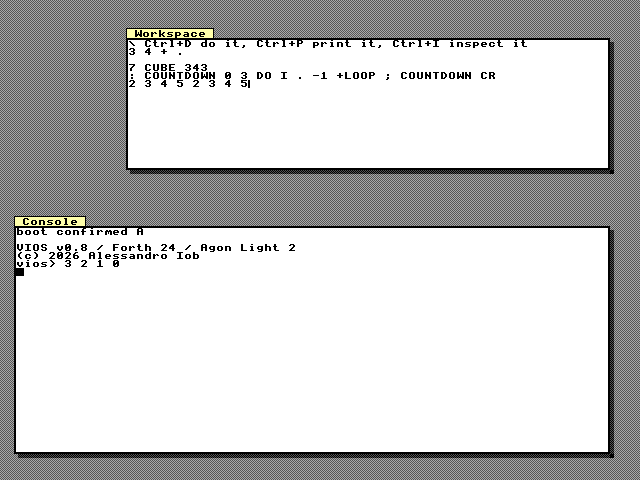
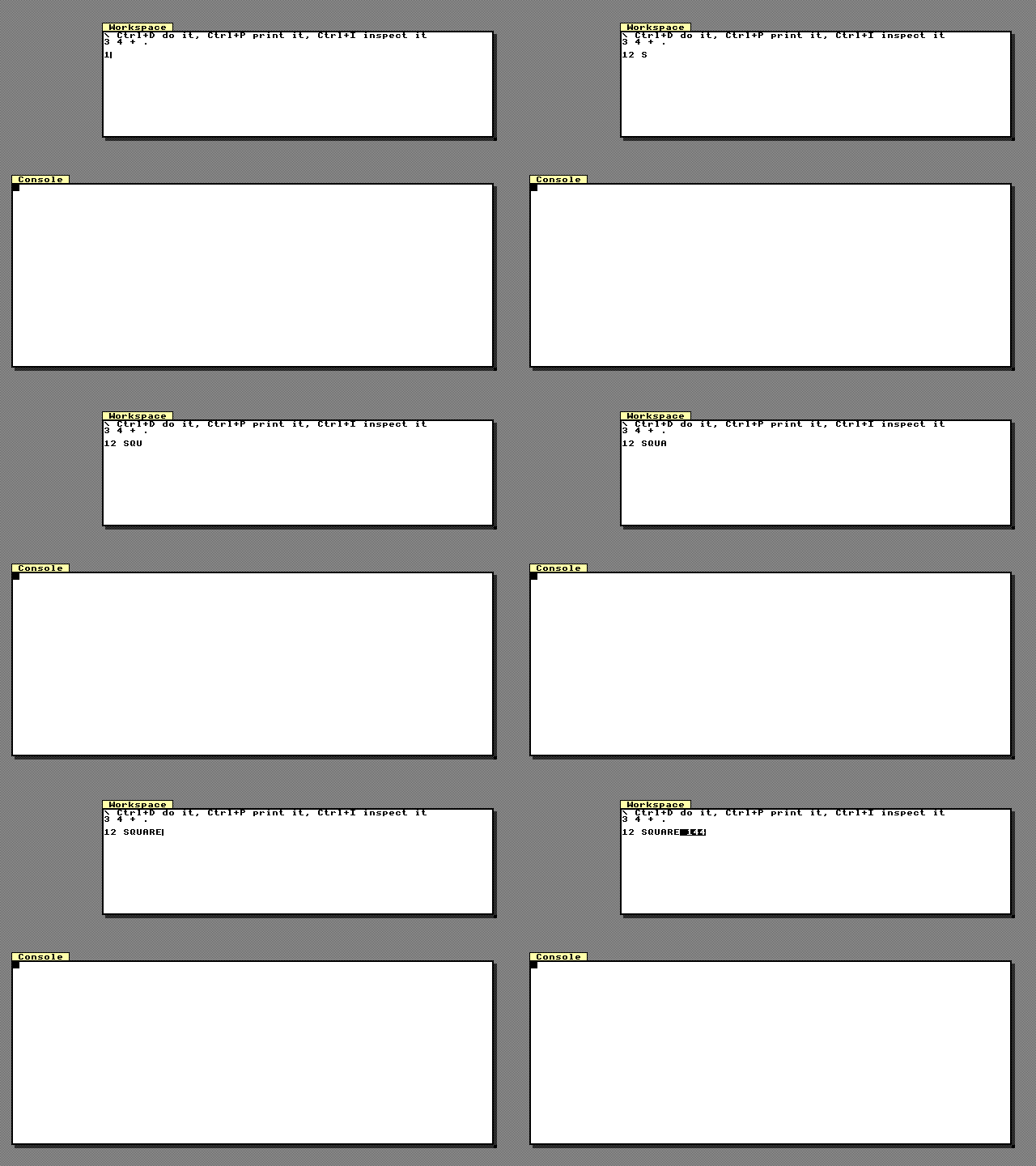
The Workspace is a text view for trying things out. It opens with a reminder:
\ Ctrl+D do it, Ctrl+P print it, Ctrl+I inspect it
3 4 + .
Select some text (Shift with the arrow keys, or Ctrl+A for everything) and press a key; with nothing selected the key works on the caret's line, which it selects first. The selection may be up to 255 bytes. Evaluation uses the same data stack as the console.
| Key | Name | Effect |
|---|---|---|
| Ctrl+D | do it | evaluate; anything printed goes to the Console window |
| Ctrl+P | print it | evaluate and insert the output (its first 40 printable characters) after the selection, selected; if nothing was printed, the values the evaluation left on the stack, which stay there |
| Ctrl+I | inspect it | evaluate, then show the stack in the Inspector (opened if needed) |
On an error the message is inserted after the selection, selected, so one
Backspace removes it: NO-SUCH-WORD error: unknown word: NO-SUCH-WORD.
The Inspector
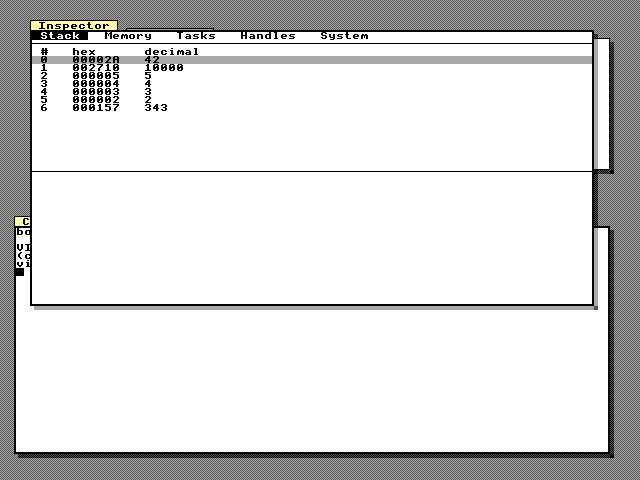
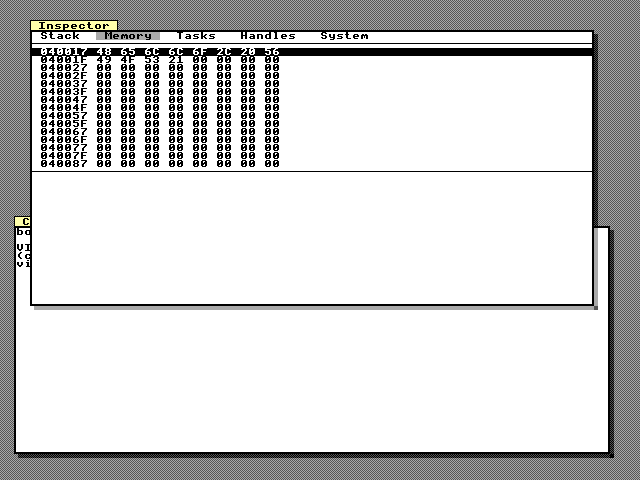
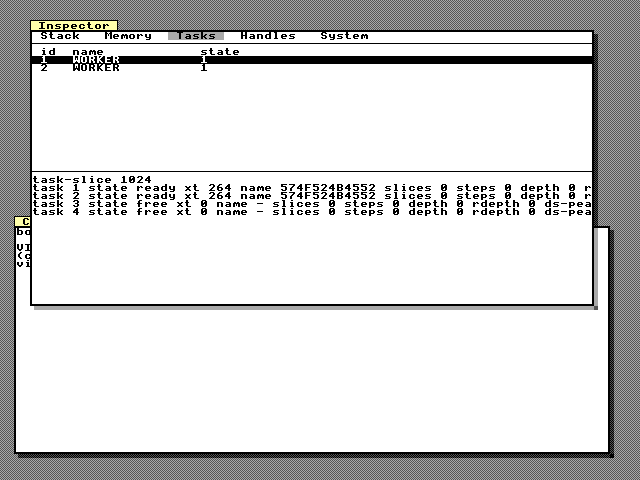
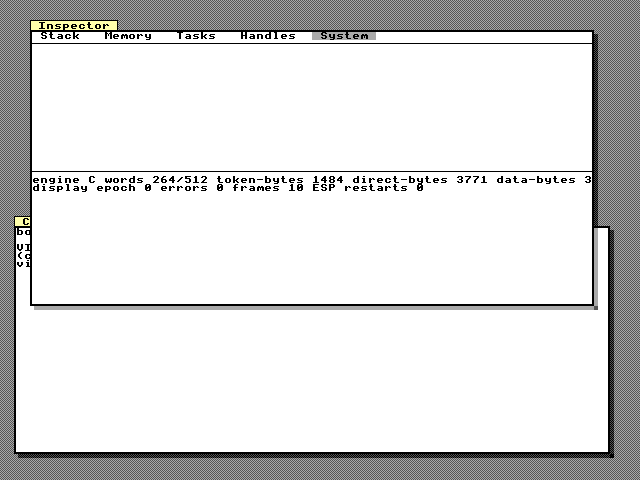
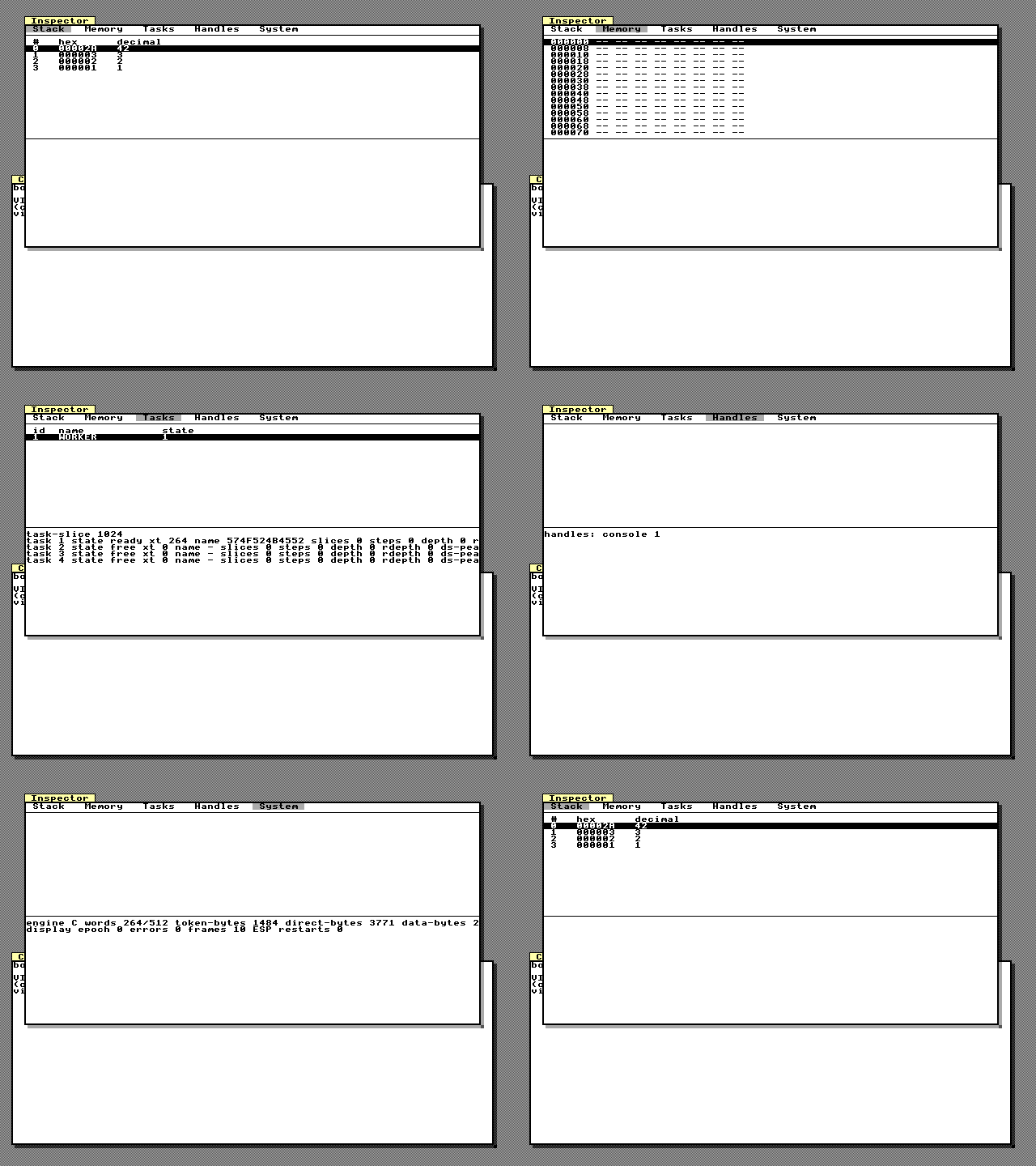
The Inspector has five tabs over a table and a read-only detail pane. Change tabs with Ctrl+Tab, or Left/Right while the tabs have the focus. The contents are a snapshot: press Ctrl+R to refresh.
| Tab | Table | Detail pane |
|---|---|---|
| Stack | the data stack, top first: position, hex and decimal | SEE of the selected value when it is an execution token |
| Memory | 16 rows of 8 bytes: the address and the bytes in hex (-- where nothing can be read) |
|
| Tasks | id, name and state of every task | the TASKS report |
| Handles | the handles report | |
| System | the RESOURCES report, then the display server's epoch, error count and frame count and how many times the ESP restarted |
Memory paging. The memory table never ends: moving Up from the first row shows 8 bytes earlier, Down from the last row 8 bytes later, PgUp and PgDn at the edges move by 64 bytes. To jump somewhere, put the address on the stack (for example in the Workspace) and choose Go to address from the pane menu.
Pane menu (Shift+F10): Refresh, Go to address (the top of the data stack
becomes the memory view's start), Kill task (on the Tasks tab: asks for
confirmation, then TASK-KILLs the selected task; Enter on a task does the
same).
The Manager
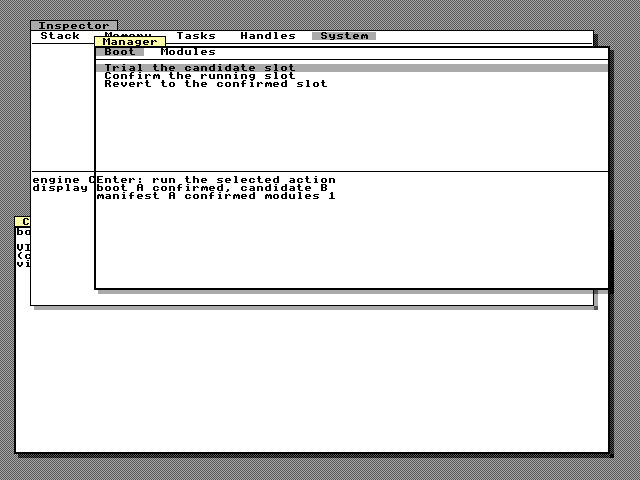
The Manager has two tabs.
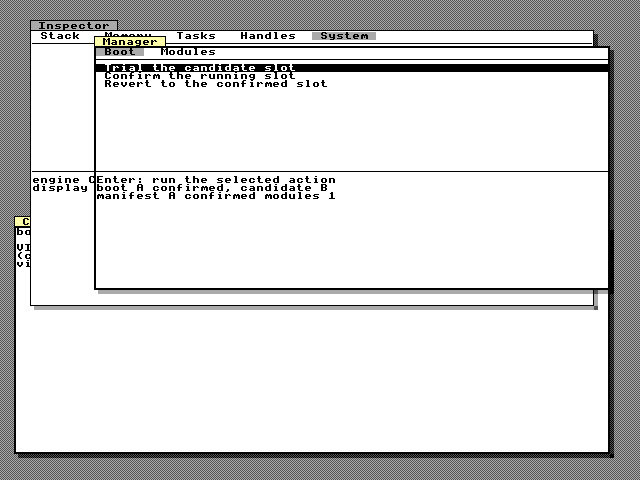
- Boot: three actions, Trial the candidate slot, Confirm the running slot and Revert to the confirmed slot, with the boot status and manifest in the detail pane (see Modules and Persistence). Enter on an action asks for confirmation first.
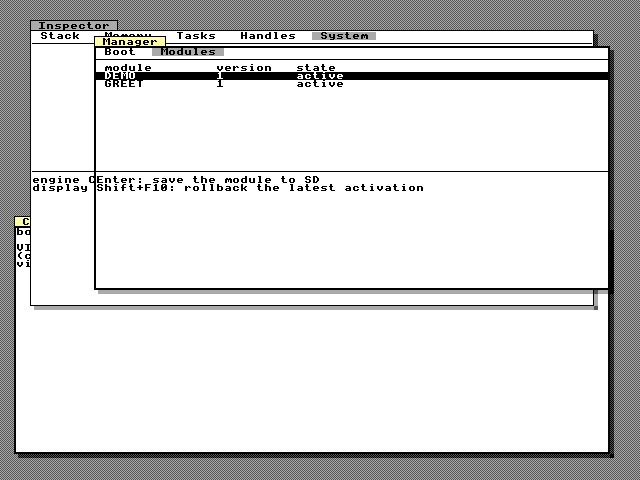
- Modules: every module with its version and whether it is active. Enter asks to save the selected module to SD; Rollback in the pane menu asks to roll back its latest activation.
The result (done, or failed: and the reason) appears in the detail pane.
The confirmation is a modal Confirm dialog (window 24) with Yes and No buttons. It dims the rest of the screen and keeps the focus until you answer. No has the focus, so Enter on its own cancels; Tab (or Shift+Tab) moves to Yes, then Enter or Space confirms. Esc also cancels.
Pane menu (Shift+F10): Refresh, Save to SD, Rollback.
Keyboard reference
Keys are resolved on the ESP in this order: an open menu or palette, the keyboard pointer, move/resize mode, the menu keys, the command palette, command accelerators, window keys, the focused widget, and finally (if nothing used the key and the window allows it) the CPU's keyboard input.
Display and windows
| Key | Action |
|---|---|
| Ctrl+Alt+F1 | switch between the GUI desktop and the full-screen text console |
| F1 | console and text workbench: switch between them |
| F6 / Shift+F6 | bring the window at the back to the front and focus it / send the focused window to the back and focus the new top one |
| F5 | zoom the focused window to almost the whole screen, or restore it |
| Ctrl+F5 | move/resize mode (see below) |
| Ctrl+W, Alt+F3 | ask to close the focused window (the program decides) |
| Esc | in a modal dialog: ask to close it |
| Ctrl+F12 | keyboard pointer on or off (see below) |
Menus and commands
| Key | Action |
|---|---|
| F10 | Smalltalk: open the world menu. Turbo Vision: open the first menu-bar entry |
| Alt+letter | Turbo Vision: open the menu-bar entry with that mnemonic |
| Shift+F10 | open the focused window's pop-up (pane) menu, else the world menu |
| Ctrl+K, Ctrl+Shift+P | command palette |
| accelerators | as defined by the commands, e.g. Ctrl+Shift+B, Ctrl+R |
| in a menu: Up / Down | previous / next item (separators are skipped) |
| in a menu: Enter, mnemonic letter | choose the item |
| in a menu: Right / Left | open the submenu (menu bar: next entry) / close it (menu bar: previous entry) |
| in a menu: Esc | close one level |
| in the palette: letters, Backspace | filter the commands (letters in order), remove a letter |
Move/resize mode (Ctrl+F5) and keyboard pointer (Ctrl+F12)
| Key | Move/resize mode | Keyboard pointer |
|---|---|---|
| arrows | move the window by 8 pixels | move the pointer by 8 pixels |
| Shift+arrows | shrink or grow the window by one cell | move the pointer by 1 pixel |
| Enter | keep the new geometry (reported as a WIN event) | click |
| Space | click | |
| Esc | restore the old geometry | leave pointer mode |
| other keys | ignored while the mode lasts |
Widgets
| Widget | Keys |
|---|---|
| any | Tab / Shift+Tab: next / previous widget of the window, in creation order. Ctrl+Tab / Ctrl+Shift+Tab: next / previous tab of the window's tabs widget |
| Button | Space or Enter: press |
| Check box | Space: toggle |
| Radio button | Space: select. Up / Down: select the previous / next radio of the group |
| Input field | Left, Right, Home, End move; Backspace, Delete; printable characters insert; Enter: activate |
| List, table | Up, Down, PgUp, PgDn, Home, End; a letter jumps to the next row starting with it; Enter: activate. Tree lists: Right / Left expand / collapse. Pager lists: moving past the first or last row asks the program for more |
| Tabs | Left / Right: previous / next tab |
Text views (Browser code pane, Workspace, detail panes)
| Key | Action |
|---|---|
| arrows, PgUp, PgDn | move the caret (Up/Down keep the column) |
| Home / End | start / end of the line |
| Ctrl+Home / Ctrl+End | start / end of the text |
| Shift + any of the above | extend the selection |
| Ctrl+A | select all |
| Ctrl+C / Ctrl+X / Ctrl+V | copy / cut / paste (an ESP clipboard of 1 KB, shared by all text views) |
| Enter, Backspace, Delete, printable characters | edit (not in read-only views) |
| Ctrl+[ / Ctrl+] | indent / de-indent the selected lines by two spaces |
| Ctrl+S | accept (Browser) |
| Ctrl+D / Ctrl+P / Ctrl+I | do it / print it / inspect it (Workspace) |
| Tab | leave the view (there is no tab character) |
Tools
| Key | Action |
|---|---|
| Ctrl+Shift+B / W / I / M | open or focus the Browser / Workspace / Inspector / Manager |
| Ctrl+R | refresh the focused tool |
| Enter | Inspector Tasks tab: kill the task. Manager: run the action or save the module (after confirmation) |
| Esc, Enter on No | cancel a confirmation |
Text workbench
| Key | Action |
|---|---|
| Tab | switch the focus between the browser and the editor |
| Up / Down | browser: move the selection. Editor: previous / next line |
| Left / Right | browser: from modules to their words / back to the modules. Editor: move the caret |
| Home, PgUp / End, PgDn | browser: first / last entry. Editor: start / end of the line |
| Enter | browser: edit the selected module (or the selected word's module). Editor: new line |
| Backspace, Delete, printable characters | edit the source |
| Ctrl+Space | widen the editor to 80 columns and back |
| F5 / F6 / F7 / F8 | stage and test / activate / save to SD / undo the last edit |
| F10 | close the workbench |
| F1 | switch to the console |
The text workbench
Before the windowed tools, VIOS had a text workbench: a full-screen module browser, inspector and source editor on the 80 x 60 text screen. It is still there, and it is also what the Browser's accept uses underneath. Under the GUI it opens as a full-screen window (window 26) above the desktop and owns the keyboard while open, so F5, F6 and F10 mean stage, activate and close there, not zoom, next window and menu.
Open it with WB-OPEN at the console or with F1 from the console; F10
closes it and F1 goes back to the console, keeping the draft. The screen
has the browser on the left (modules, or the words of one module), the
inspector at the top right (the selected word or module, the data stack and
BASE, dictionary use) and the source editor below it, with the draft's state
(MODIFIED/CLEAN, STAGED, ACTIVE, SAVED, size and revision) and the
last error along the bottom. There is one draft of up to 4096 bytes and one undo
step. Kernel words are read-only; choosing a module word edits its module.
The WB- names are console commands, not dictionary words: type each on a
line of its own, with its arguments after it; they cannot be compiled into a
definition. Most print a WB-STATUS line describing the draft. Every editing
command takes the draft's current revision and refuses a stale one, so two
clients (the keyboard and the host harness, say) cannot overwrite each other.
This session creates, tests, activates and saves a module:
WB-NEW HELLO 1 0The status line now says revision 2. Insert : SEVEN 7 ; and a line feed
(given in hex) at offset 0, which makes it revision 3, and read it back:
WB-PATCH 2 0 0 3A20534556454E2037203B0A
WB-SOURCE 0 12
Stage (compile and test in isolation), activate, and use it:
WB-STAGE 3
WB-ACTIVATE 3
SEVEN .
Save the active module to the SD card:
WB-SAVE 3| Command | Arguments | Effect |
|---|---|---|
WB-OPEN / WB-CLOSE |
open / close the workbench (the draft stays) | |
WB-STATUS |
print the draft's state | |
WB-NEW |
module version discard | start an empty draft (discard 1 drops a modified one) |
WB-EDIT |
module discard | load an active module's source |
WB-PATCH |
revision offset remove hex | replace bytes (at most 80 new bytes, - for none) |
WB-META |
revision version test | set the version and test word (- for none) |
WB-UNDO |
revision | undo the last edit (F8) |
WB-STAGE / WB-ACTIVATE / WB-SAVE |
revision | F5 / F6 / F7 |
WB-SOURCE |
offset count | print up to 80 bytes of the draft in hex |
WB-BROWSE |
MODULES or WORDS [module] |
list modules or words |
WB-SELECT |
MODULE name or WORD index |
select in the browser |
WB-KEY |
code modifiers | press a key (256..267: Up, Down, Left, Right, Home, End, Delete, F5, F6, F7, F8, F10) |
WB-VIEW |
row count | print screen rows in hex |
WB-ZOOM / WB-ZOOM? |
0 or 1 | wide editor on or off / show it |
WB-CONSOLE, WB-CONSOLE?, WB-CONSOLE-CLEAR |
show the console, show its state, clear it | |
WB-REPAINT, WB-REDRAW |
repaint; full recovery after raw VDU/MODE use |
|
WB-FLUSH, WB-FLUSH-FENCED, WB-COMPOSE, WB-RENDER-STATS |
painting diagnostics |
The screen is painted by the deferred word WB-PAINT, which
runs at the idle boundary with a temporary stack and a budget of 4096
instructions. If you replace it and your painter fails, painting stops but the
draft is safe; put the default back with:
' WB-PAINT-DEFAULT IS WB-PAINT(followed by WB-REDRAW on the board).
Console and editor
The REPL is the Console window on the desktop (74 x 28 cells, scrolling
through 58 lines). Its last row reminds you of the keys:
VIOS console F1: editor Up/Down: history. F1 switches between the
console and the text workbench, Ctrl+Alt+F1 between the desktop and a
full-screen text console with the same contents. See
The Console and REPL for line editing and history.